A tour of the window
The five parts of the Termul window and what each one is for.
The Termul window has five parts. The numbers in the picture match the sections on this page.
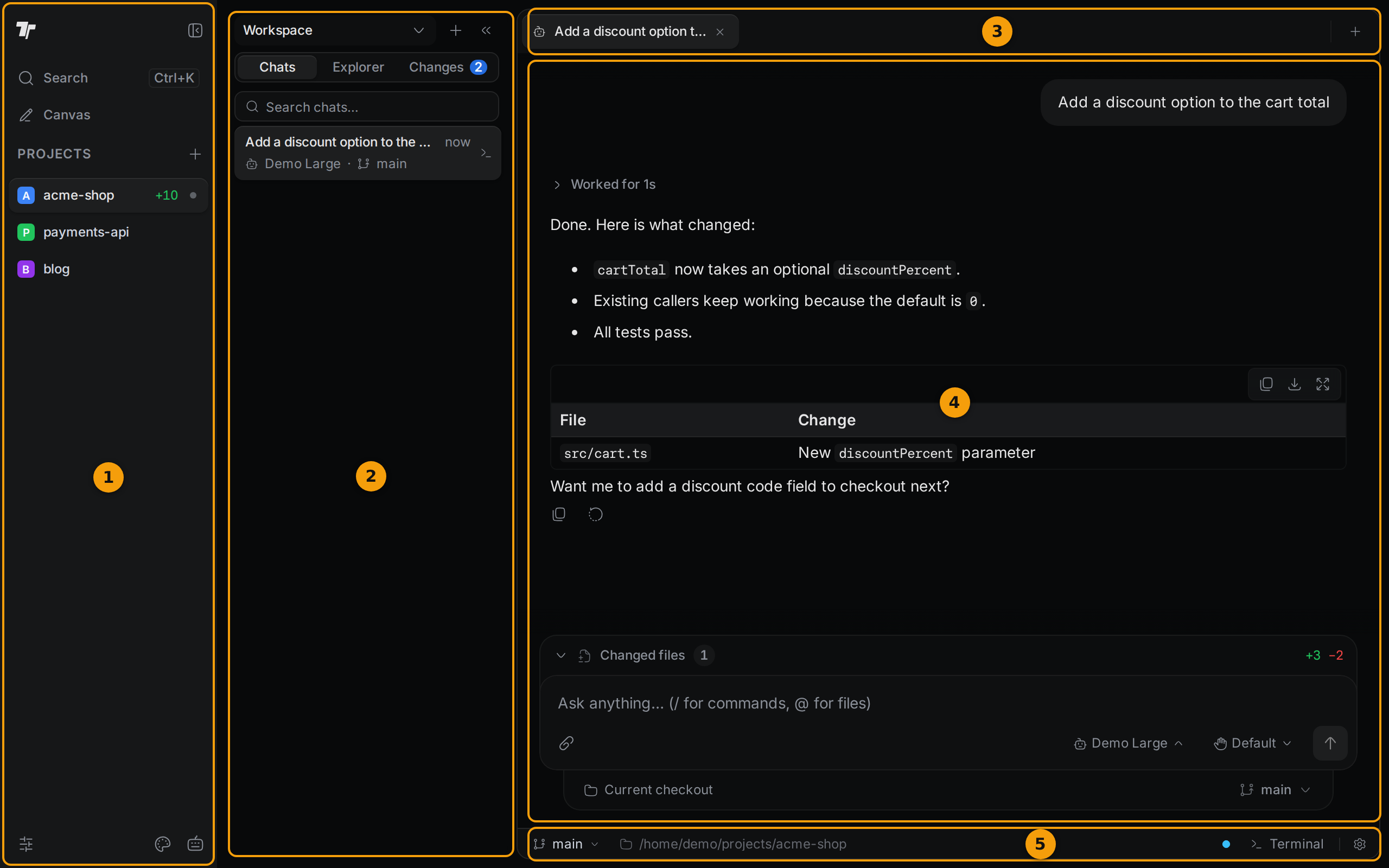
1. The projects list
The column on the far left lists your projects. Select a project to switch to it. See Manage projects.
From top to bottom it has these parts:
- Search opens the command palette. Its key is shown next to it.
- Canvas opens the project's design document (a
.opfile in the project folder) in a tab. If the project has no such file, Termul tells you so. - Projects has a + button to create a project or a folder group. Below it are your projects.
- At the bottom are three buttons:
- Settings opens the app settings.
- Color themes opens the theme picker.
- Keyboard shortcuts opens the Shortcut Menu, where you can change common shortcuts.
The button at the top right of the column collapses it to a narrow strip of icons. Press Ctrl+Shift+B (Cmd+Shift+B on macOS) to collapse or expand it. You can also drag the right edge of the column to change its width.
When the column is collapsed, it shows icons for your projects and for the three side panel tabs. Select the project icon to search your projects and switch.
2. The side panel
The side panel shows more about the current project. It has three tabs:
- Chats lists your chats with agents in this project. Use Search chats… to find one. See Agents.
- Explorer shows the files in the project folder. See Files.
- Changes shows the files you changed, and lets you stage and commit them. The number on the tab counts the changed files. See Git.
Above the tabs:
- The Workspace menu picks the working copy you work in. That is the project folder or one of its Git worktrees. A worktree is a second checkout of the same repository in another folder, often on another branch. Chats, Changes, and the status bar follow your choice. See Worktrees.
- + starts a new chat.
- « hides the side panel. Press
Ctrl+B(Cmd+Bon macOS) to hide or show it. When it is hidden, a » button at the left of the tab bar brings it back.
3. The tab bar
Each open chat, terminal, file, and Git view is a tab. Select a tab to show it. To close a tab, select its ×, middle-click it, or press Ctrl+W (Cmd+W on macOS, Alt+W in the browser).
The + at the right end of the tab bar opens the new-tab menu:
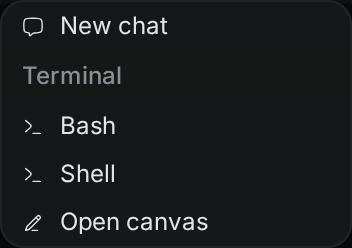
- New chat starts a chat with an agent.
- Under Terminal, select a shell to open a terminal. Termul lists the shells it found on the computer.
- New browser tab opens a web page inside Termul. It is in the desktop app only. See Browser.
- Open canvas opens the project's design document.
Right-click a tab for more actions, such as Rename for a terminal, Close Other Tabs, and Copy Path for a file.
You can show several tabs side by side. Drag a tab to the left, right, top, or bottom edge of the main area to split it. See Terminals for tabs and panes in detail.
4. The main area
The main area shows the active tab. With no tab open, it shows What should we do in <project>? and a message box. Type what you want an agent to do and press Enter to start a chat.
The buttons under the message box, such as Explain this project and Find a bug, fill in a ready-made request. They don't send it. Edit the text if you want, then press Enter.
The Current checkout menu under the message box picks where the agent works. Choose the current checkout, an existing worktree, or a new worktree. See Agents.
5. The status bar
The bar at the bottom shows facts about the current working copy. From left to right:
- The Git branch. Select it to switch to another branch or create a new one.
- The path of the working folder.
- A note when a chat needs your answer. Select it to open that chat.
- In the browser, a dot that shows the connection to the server. If the server goes offline, select the dot to try again.
- In the desktop app, a monitor icon for remote access.
- The exit code of the last terminal command, such as Exit 1.
- Terminal opens a terminal in the working folder.
- The gear opens Show in Context Bar. Use it to turn on or off Project Name, Git Branch, Git Status, Working Directory, and Exit Code. Project Name and Git Status are off by default.
On a phone
On a narrow screen, such as a phone, Termul uses a different layout. The projects list, the side panel, and the tab bar are hidden. Select the menu button at the top left to switch between chats, terminals, and open files. See Browser and phone.