Command palette
Find projects and run commands from one search box.
The command palette is a search box for projects and commands. Use it to switch projects, open a terminal, change the theme, and more, without the mouse.
Open the palette
Use one of these:
- Press
Ctrl+K(Cmd+Kon macOS). - Press
Ctrl+Shift+P(Cmd+Shift+Pon macOS). - Select Search at the top of the projects list.
Both keys open the same palette, in the desktop app and in the browser.
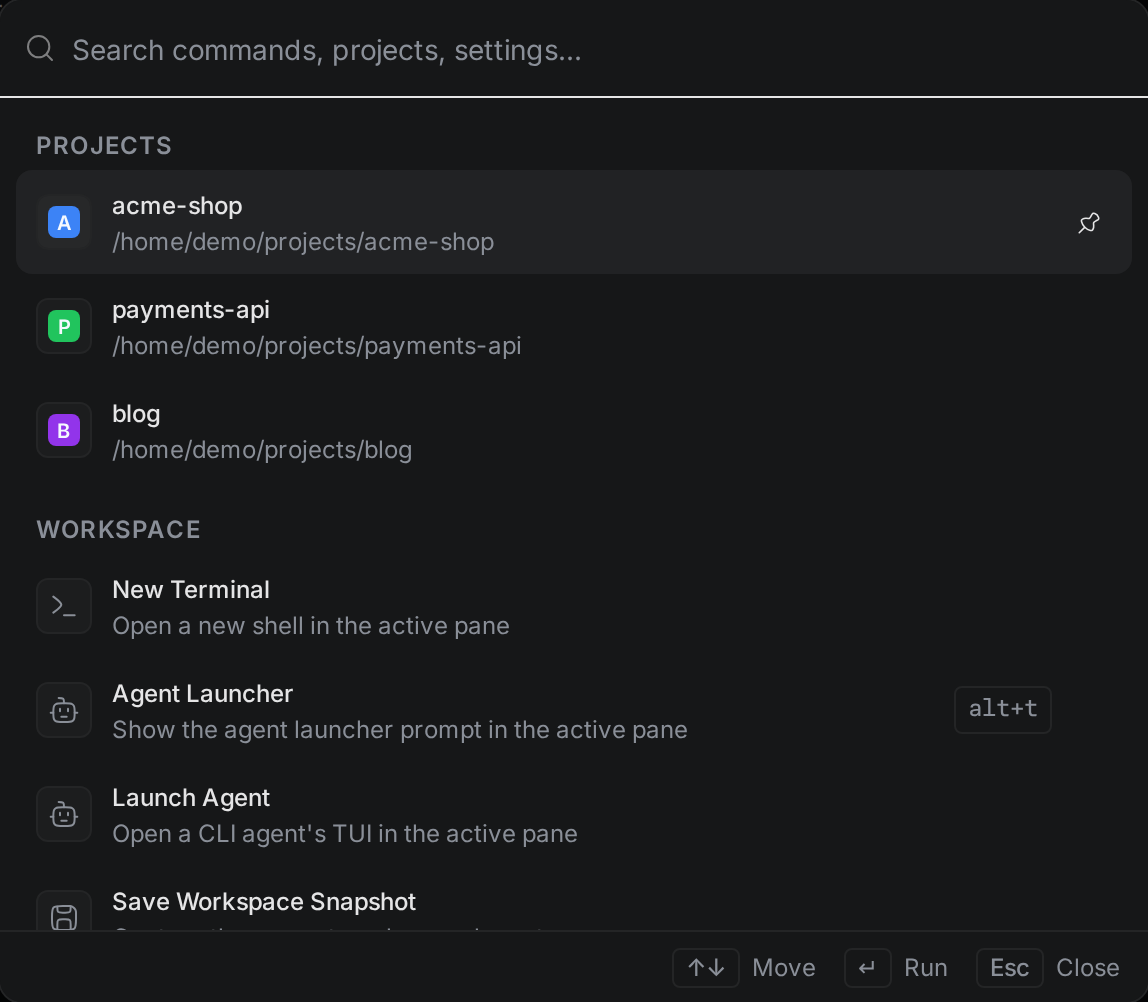
Run a command
- Type a few letters of what you want. The list keeps only the items that match.
- Press
UpandDownto move through the list. - Press
Enterto run the selected item, or select it with the mouse.
Press Esc to close the palette.
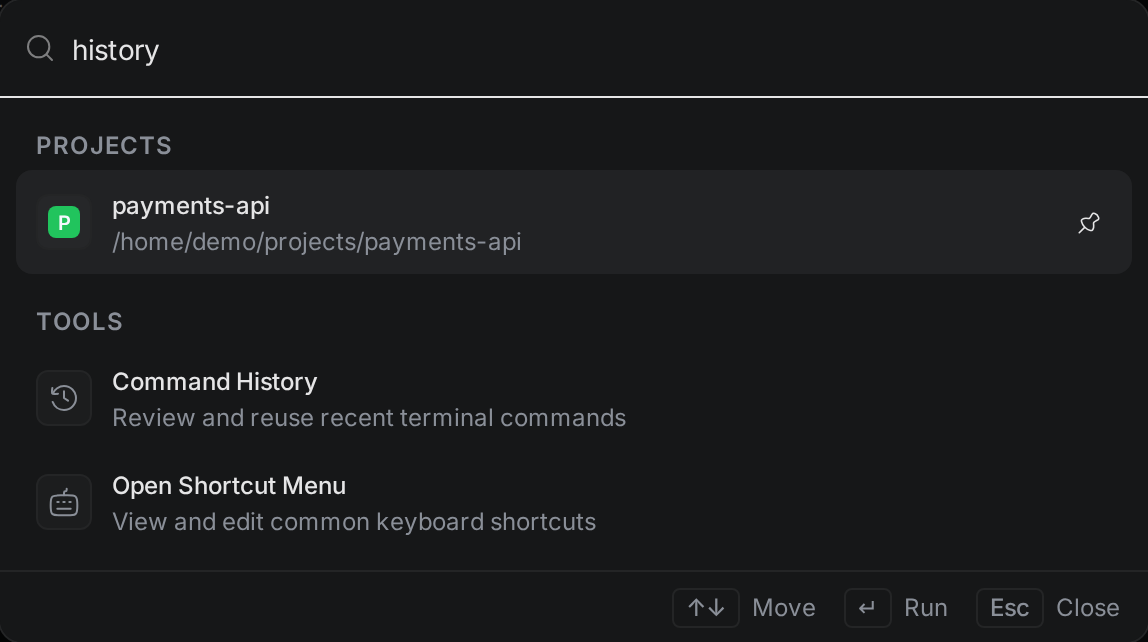
The palette matches the names and descriptions of commands, and the names and folders of projects. It doesn't search the files in your project or your chats. To search files, use the file explorer. To find a chat, use Search chats… on the Chats tab.
Pin the commands you use most
- Open the palette and hover over a command, or move to it with the arrow keys.
- Select the pin icon at the right of the row.
Pinned commands show at the top of the palette, under Pinned, until you unpin them. To unpin a command, select its pin icon again.
Under Pinned, the palette shows Recent, the last five commands you ran. Both groups show only while the search box is empty.
What you can do from the palette
The palette groups its items in this order.
Projects lists every project with its folder. Select one to switch to it.
Workspace has these commands:
- New Terminal opens a terminal in the active pane.
- New Terminal: <name> opens a terminal from one of your saved terminal profiles. See Terminals.
- Agent Launcher shows the box where you start a new agent chat. See Agents.
- Launch Agent opens a command-line agent in a terminal in the active pane.
- New Browser Tab opens a web page in Termul. Desktop app only.
- Save Workspace Snapshot saves the terminals you have open so you can bring them back later. See Terminals.
- Open Canvas opens the project's design document.
- New Project creates a project. This command is in the phone layout only. Elsewhere, use + in the projects list.
Navigation has these commands:
- Project Settings opens the settings of the current project.
- App Preferences opens the app settings.
Tools has these commands:
- Command History opens a searchable list of the commands you ran in terminals. It shows when a project is open.
- Change Color Theme opens the theme picker.
- Open Shortcut Menu shows the most used shortcuts so you can change them.
- SSH: <host> connects to a saved SSH host. Desktop app only. See SSH.