Notifications
Get a notification when an agent finishes, needs your approval, or a terminal command ends.
Termul can tell you when an agent is done or waiting for you, so you can work in another window. A notification shows the project name and the name of the chat or terminal. Click a chat notification or a terminal agent notification to go to that chat or terminal.
Termul does not send agent notifications about a chat or terminal that you are looking at now.
Turn notifications on or off
- Open app settings with
Ctrl+,(Cmd+,on macOS,Alt+,in the browser version). - Select Behavior.
- Under Notifications, use the switches.
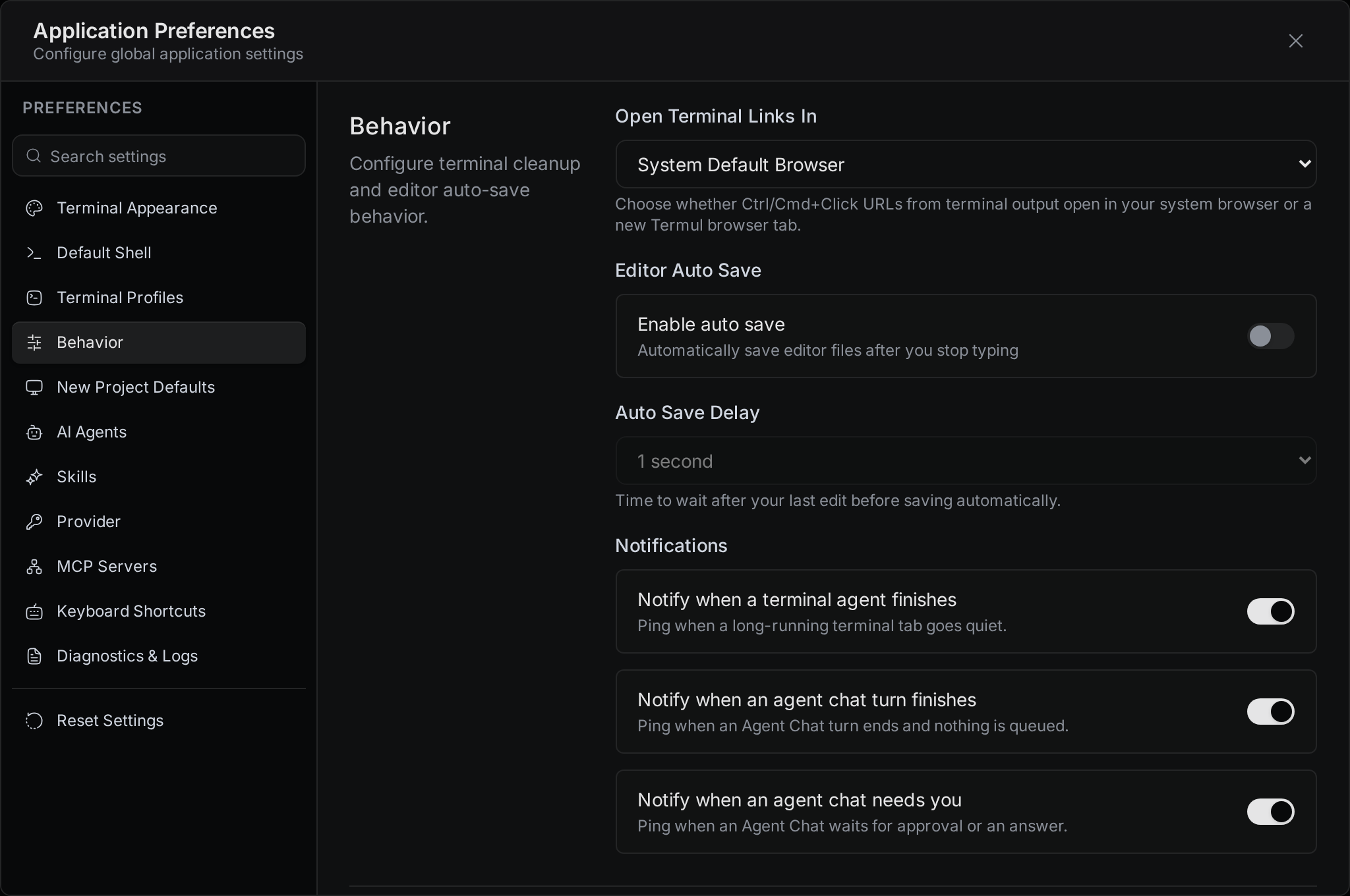
All three switches are on by default.
- Notify when a terminal agent finishes is for an agent or a long command that runs in a terminal tab. Termul notifies you when the terminal printed output for at least 20 seconds and then stayed quiet for 8 seconds. A short command such as
lsdoes not cause a notification. - Notify when an agent chat turn finishes is for agent chats. Termul notifies you when the agent finishes its answer and no other message of yours is waiting in the queue. A turn that you stop yourself does not cause a notification.
- Notify when an agent chat needs you is for agent chats that wait for you to approve an action or to answer a question.
Notifications when a terminal ends
When the program in a terminal ends on its own, Termul sends a notification with the terminal name and DONE, or Failed and the exit code. If you are not looking at that terminal, Termul also marks it so you can find it. There is no switch for this notification. Termul does not send it when you close the terminal yourself or for SSH sessions.
Allow notifications on your computer
The desktop app asks your operating system for permission when it starts. If you said no, allow Termul in the notification settings of your operating system.
Allow notifications in the browser version
The browser asks for permission the first time Termul sends a notification. Select Allow.
- If you blocked notifications, allow them for the Termul address in the site settings of your browser.
- Browsers show notifications only for pages on
https://or onlocalhost. If you open Termul at a plainhttp://address, such ashttp://192.168.1.20:8080, you get no permission question and no notifications. To get them, serve Termul over HTTPS. See Browser and phone.