Project settings
Set the name, folder, color, environment variables, and shell of one project.
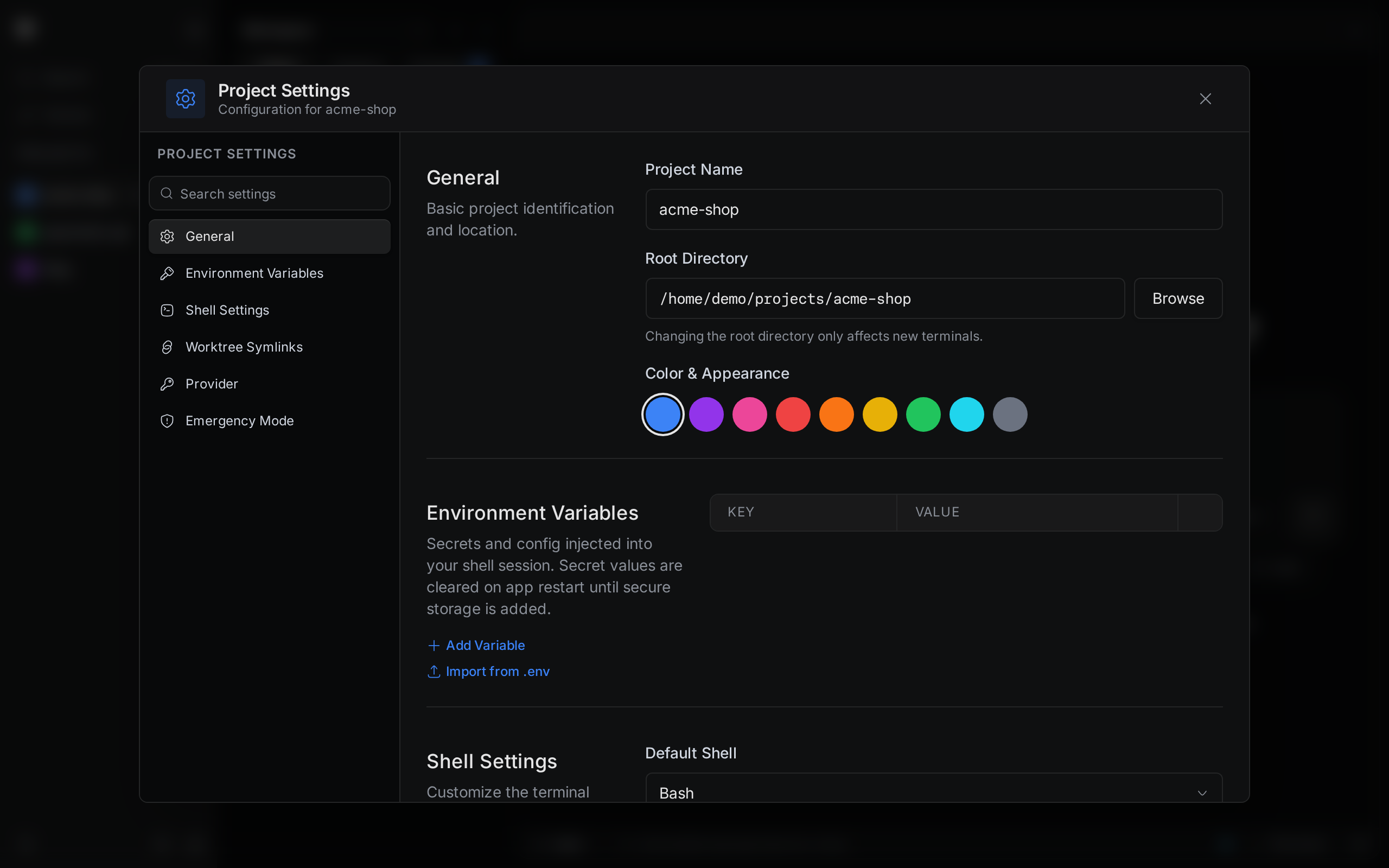
Project settings change one project only. Use them to rename a project, move it to another folder, give its terminals extra environment variables, or pick its shell.
Open project settings
- Right-click the project in the sidebar.
- Select Settings.
You can also press Ctrl+K and choose Project Settings. That opens the settings of the project you have open.
Save your changes
Project settings are not saved until you save them. When you change something, a bar appears at the bottom of the window.
- Select Save Changes to keep your changes.
- Select Discard to drop them.
If you close the window with unsaved changes, Termul asks you to confirm. Select Leave to close without saving.
General
- Project Name is the name in the sidebar.
- Root Directory is the project folder. Type a path or select Browse. Terminals that are already open stay in the old folder. New terminals open in the new one.
- Color & Appearance is the color of the project in the sidebar.
Environment Variables
Environment variables are names and values that programs read when they start, such as NODE_ENV=development. Terminals and agent chats that you start in this project after you save get these variables.
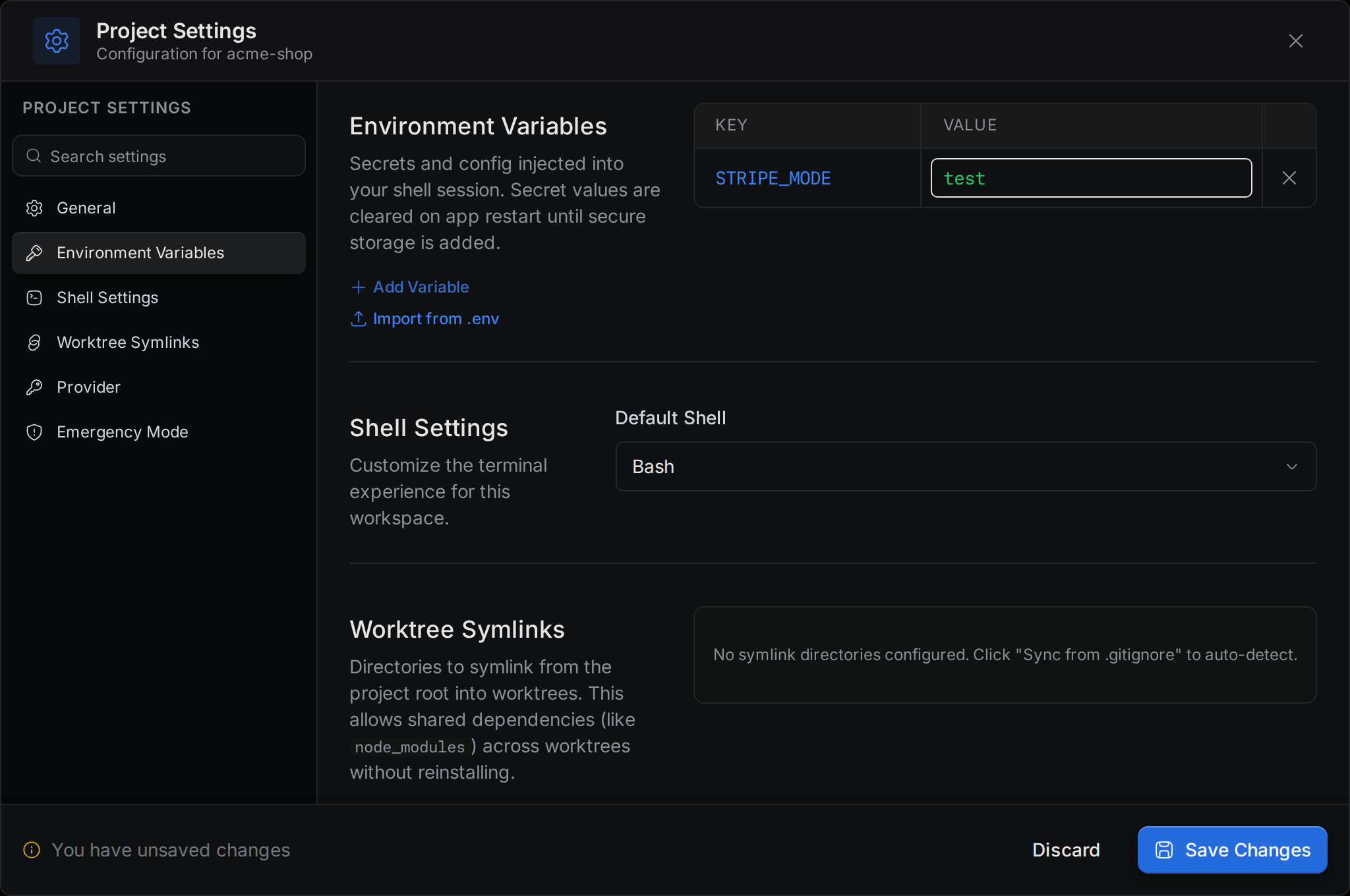
To add a variable:
- Select Add Variable.
- Type the name under Key and the value under Value.
- Select Save Changes.
To remove a variable, select the X at the end of its row.
To copy the variables from a .env file, select Import from .env. Termul reads the .env file in the project's root folder. A variable from the file replaces a variable with the same name. If some lines of the file are not valid, Termul imports the rest and lists the lines it skipped.
Shell Settings
Default Shell is the shell that new terminals in this project start. It replaces the default shell from the app settings for this project only.
Worktree Symlinks
A worktree is a second working folder of the same git repository, often on another branch. See Worktrees. A new worktree does not have folders that git ignores, such as node_modules. Without them, you must install your dependencies again in each worktree.
This tab lists folders that Termul links from the project folder into each new worktree. A linked folder is shared, so the worktree uses the same node_modules as the project.
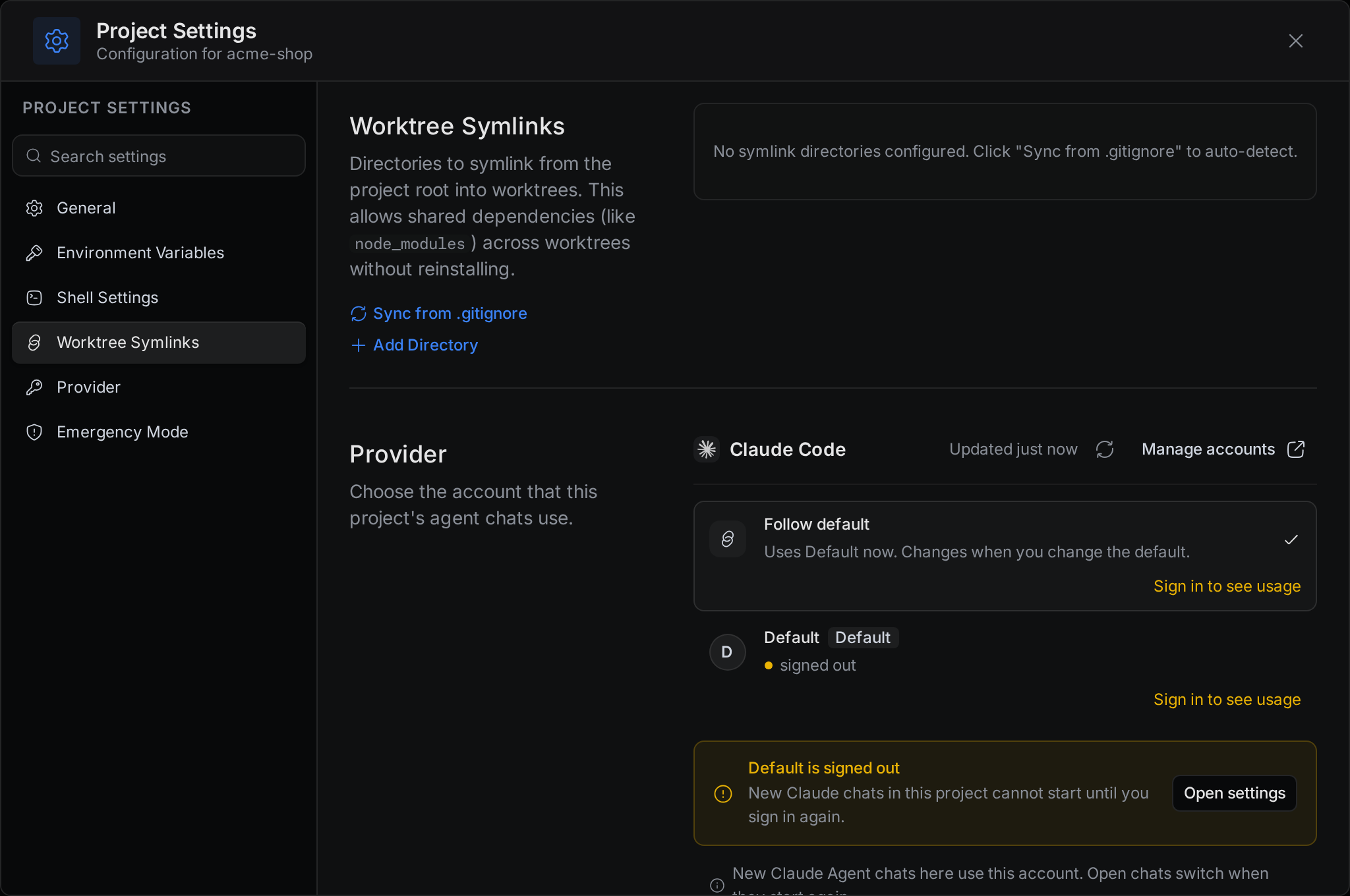
- Sync from .gitignore adds every folder that your
.gitignorefile lists and that exists in the project. It works only in a git project. - Add Directory adds an empty row. Type a folder name, such as
node_modules. - The X at the end of a row removes the folder from the list.
When the list of a git project is empty, Termul fills it from .gitignore the first time you open project settings. Select Save Changes to keep that list.
When you create a worktree, the Symlink Directories part of the new worktree window lists these folders. Clear a folder's checkbox to skip it for that worktree.
Provider
Provider picks the Claude account that agent chats in this project use. Follow default uses the default account from the app settings. Select Manage accounts to add or sign in to accounts. New Claude chats in the project use the account you pick. Chats that are already open switch when they start again. See Agent setup.
Emergency Mode
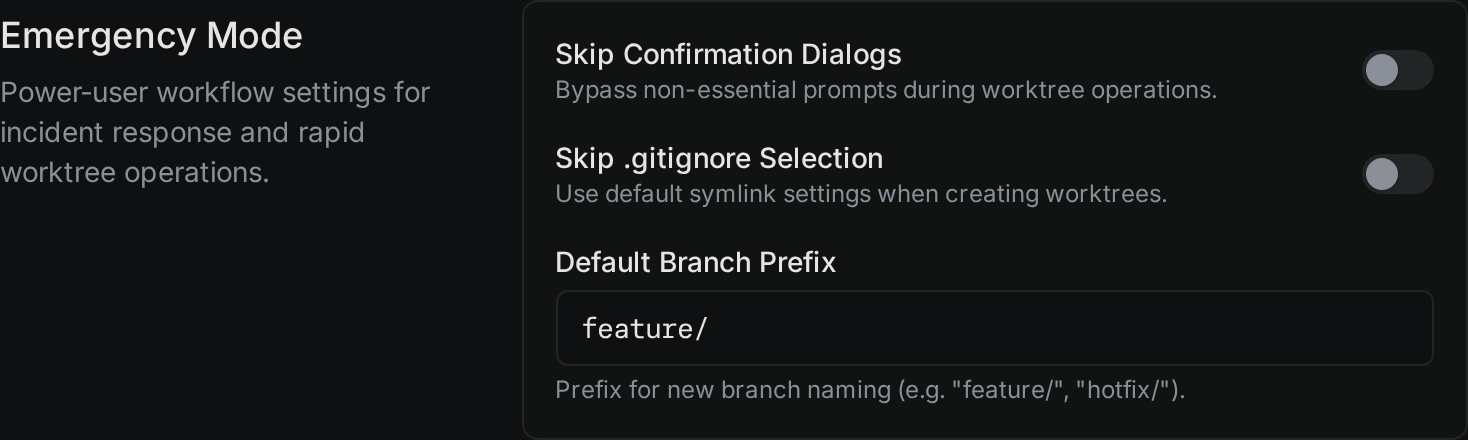
Emergency Mode has three controls meant for fast worktree work:
- Skip Confirmation Dialogs says it skips the "are you sure" questions during worktree work.
- Skip .gitignore Selection says new worktrees use the folders from Worktree Symlinks without asking.
- Default Branch Prefix is the start of new branch names, such as
feature/orhotfix/.