Keyboard shortcuts
Change a keyboard shortcut, go back to the default, and handle conflicts.
You can change the keys of every app shortcut. Termul saves a new shortcut as soon as you record it. For the list of default shortcuts, see Getting started.
Change a shortcut
- Open app settings with
Ctrl+,(Cmd+,on macOS,Alt+,in the browser version). - Select Keyboard Shortcuts.
- Click the key box under the shortcut you want to change. The box shows Press keys....
- Press the new key combination.
If no other shortcut uses those keys, Termul saves the new shortcut right away. A changed shortcut shows in blue.
To stop without a change, press Esc or click somewhere else. Pressing only Ctrl, Alt, Shift, or Cmd does not record anything.
Fix a conflict
If another shortcut already uses the keys you pressed, Termul does not save them. It shows which shortcut has those keys.
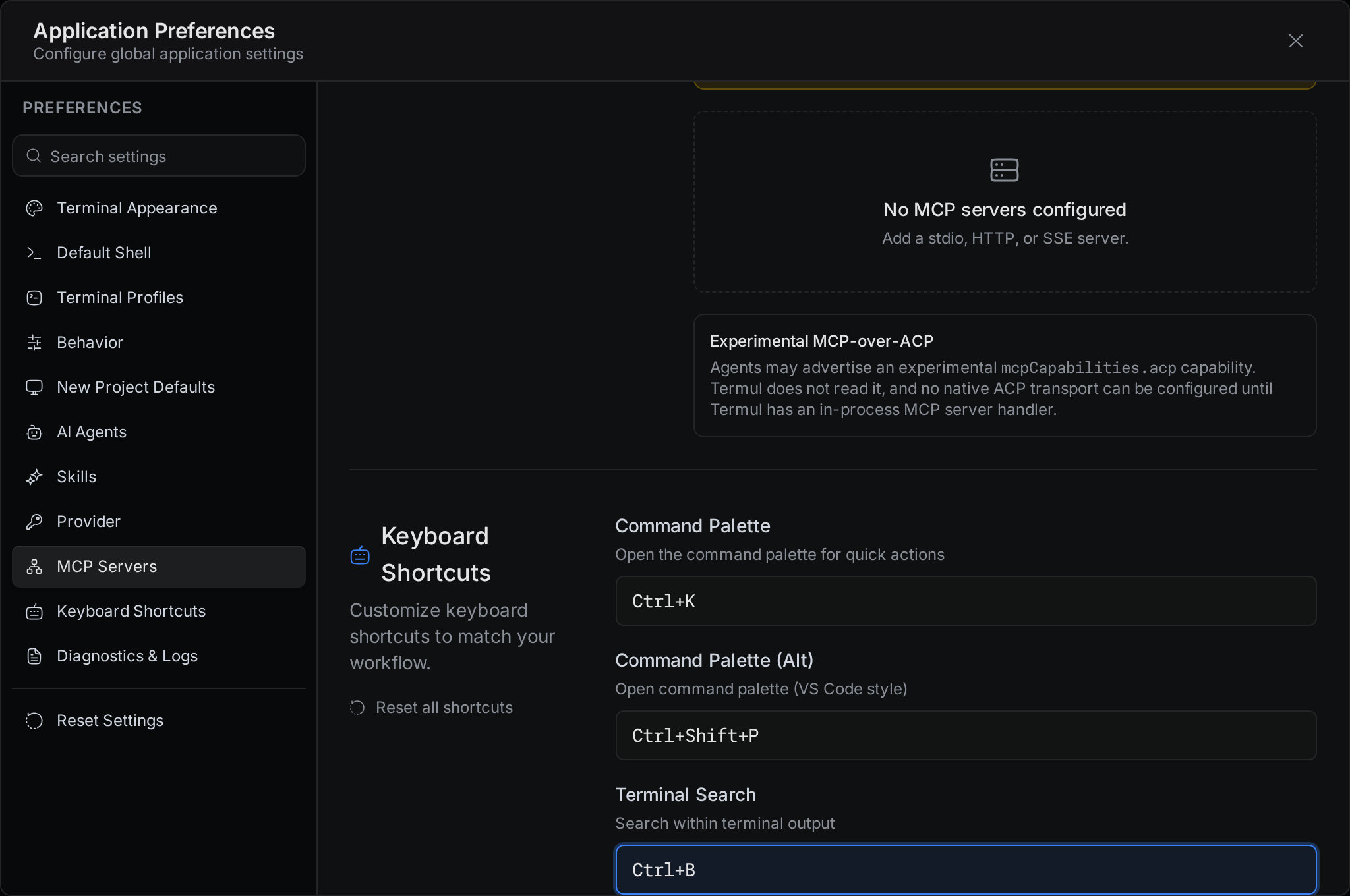
- To keep the keys, select Use anyway. Both shortcuts then use the same keys, so change the other shortcut too.
- To pick other keys, click the key box again and press a different combination.
Go back to the default
- To reset one shortcut, select the round arrow next to its name. The arrow shows only on changed shortcuts.
- To reset all shortcuts, select Reset all shortcuts under the Keyboard Shortcuts title, then select Reset.
Reset to Defaults under Reset Settings also resets all shortcuts, together with every other app setting.
Use the shortcut menu
The shortcut menu shows the shortcuts you use most, and lets you change them without opening settings.
- Select the keyboard button at the bottom of the sidebar. You can also press
Ctrl+Kand choose Open Shortcut Menu. - Click a key box and press the new keys, the same way as in settings.
- Press
Escor click outside the menu to close it.
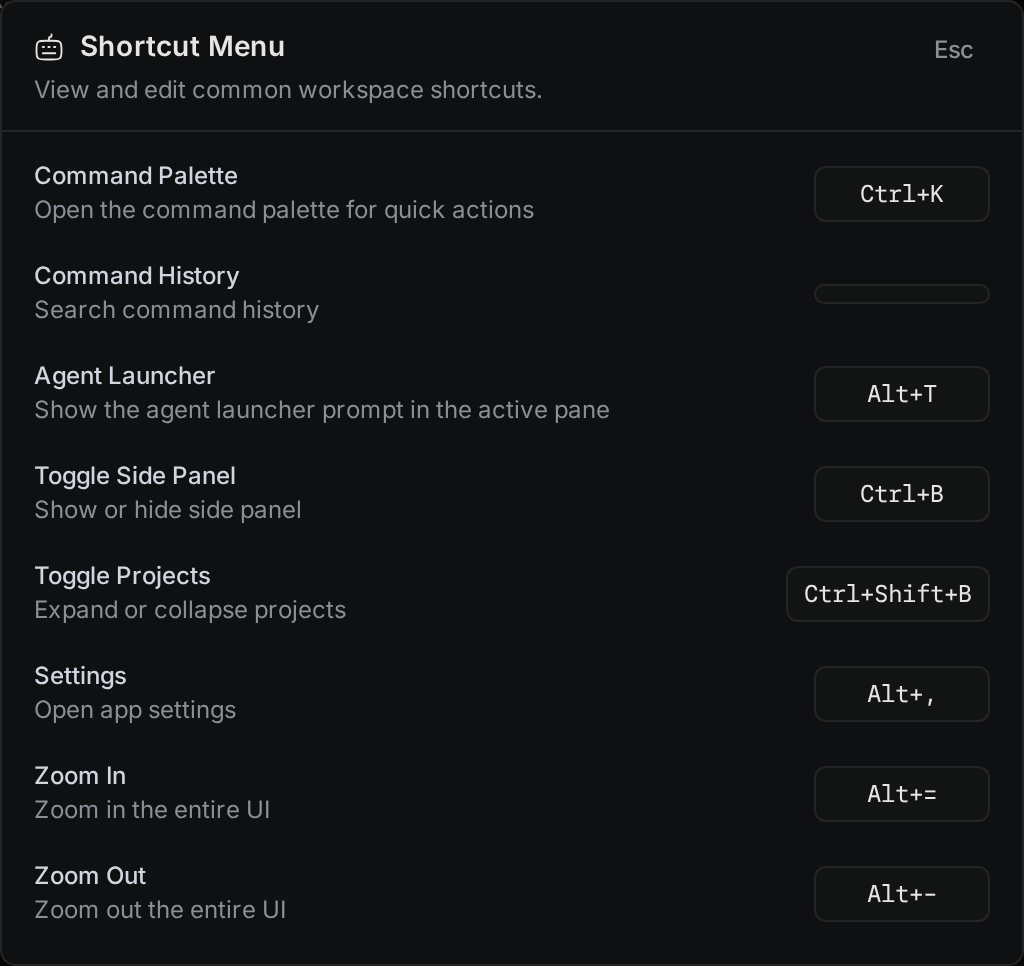
The menu has Command Palette, Command History, Agent Launcher, New Browser Tab (desktop app only), Toggle Side Panel, Toggle Projects, Settings, Zoom In, Zoom Out, and Reset Zoom.
Shortcuts in the browser version
A web browser keeps some keys for itself. For example, Ctrl+T opens a browser tab and Ctrl+W closes one, and a web page cannot use them. The browser version of Termul uses other default keys for these shortcuts:
| Shortcut | Desktop app | Browser version |
|---|---|---|
| New Project | Ctrl+N | Alt+N |
| Agent Launcher | Ctrl+T | Alt+T |
| Close Tab | Ctrl+W | Alt+W |
| Next Tab | Ctrl+PageDown | Alt+PageDown |
| Previous Tab | Ctrl+PageUp | Alt+PageUp |
| Zoom In | Ctrl+= | Alt+= |
| Zoom Out | Ctrl+- | Alt+- |
| Reset Zoom | Ctrl+0 | Alt+0 |
| Settings | Ctrl+, | Alt+, |
| Command History | Ctrl+R | No key |
New Browser Tab is not in the browser version. If you change one of these shortcuts, Termul uses your keys instead.
Shortcuts on macOS
On macOS, press Cmd where a shortcut says Ctrl. The settings list shows these shortcuts with the Control symbol ⌃, but Cmd is the key that works. Control on its own goes to the terminal, so shells and programs in the terminal still get keys such as Control+C.