Use Termul on a phone
Chat with agents, answer approvals, use terminals, files and git from a phone.
On a phone, Termul uses a layout made for a small touch screen. You see one chat, terminal or file at a time, and a menu slides in from the side for everything else.
Termul switches to this layout when the browser window is 767 pixels wide or less. It also uses it for a phone turned sideways, when the window is less than 500 pixels tall. A desktop browser window that you make narrow gets the same layout.
To make changes from your phone, the phone must be allowed to. A link shared from the desktop app is always view-only, and so is a server without --allow-remote-writes. See Allow changes from other devices.
Find your way around
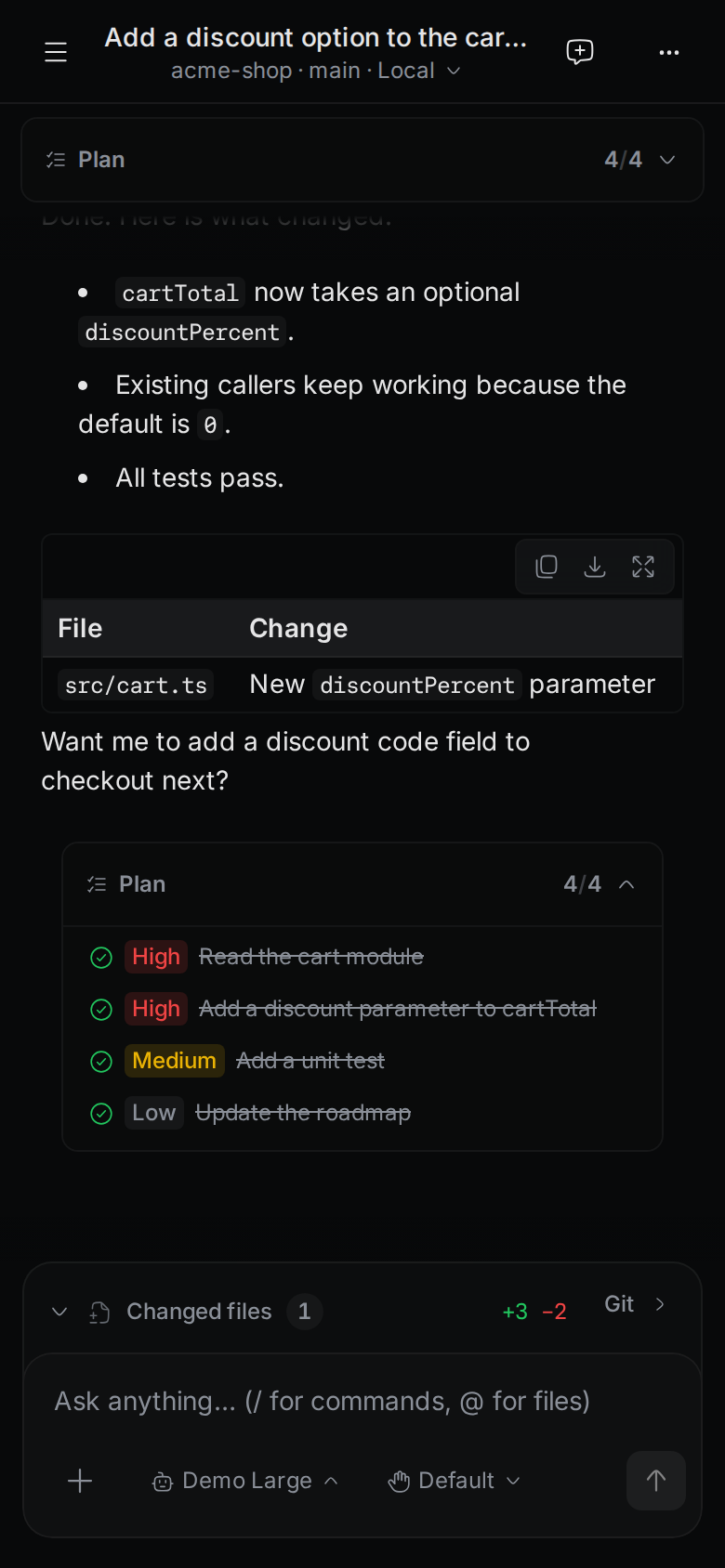
The bar at the top has these parts, from left to right:
- Open menu (☰) opens the side menu.
- The title of the chat or terminal. Under it is the project, the branch, and Local or Worktree. Tap that line to switch to another project.
- A yellow number, when chats are waiting for you. Tap it to open the side menu.
- New chat in a chat, or New terminal in a terminal.
- More (⋯) in a chat, or Terminal actions (⋯) in a terminal.
Open the side menu
Tap Open menu to see your chats, terminals and open files.
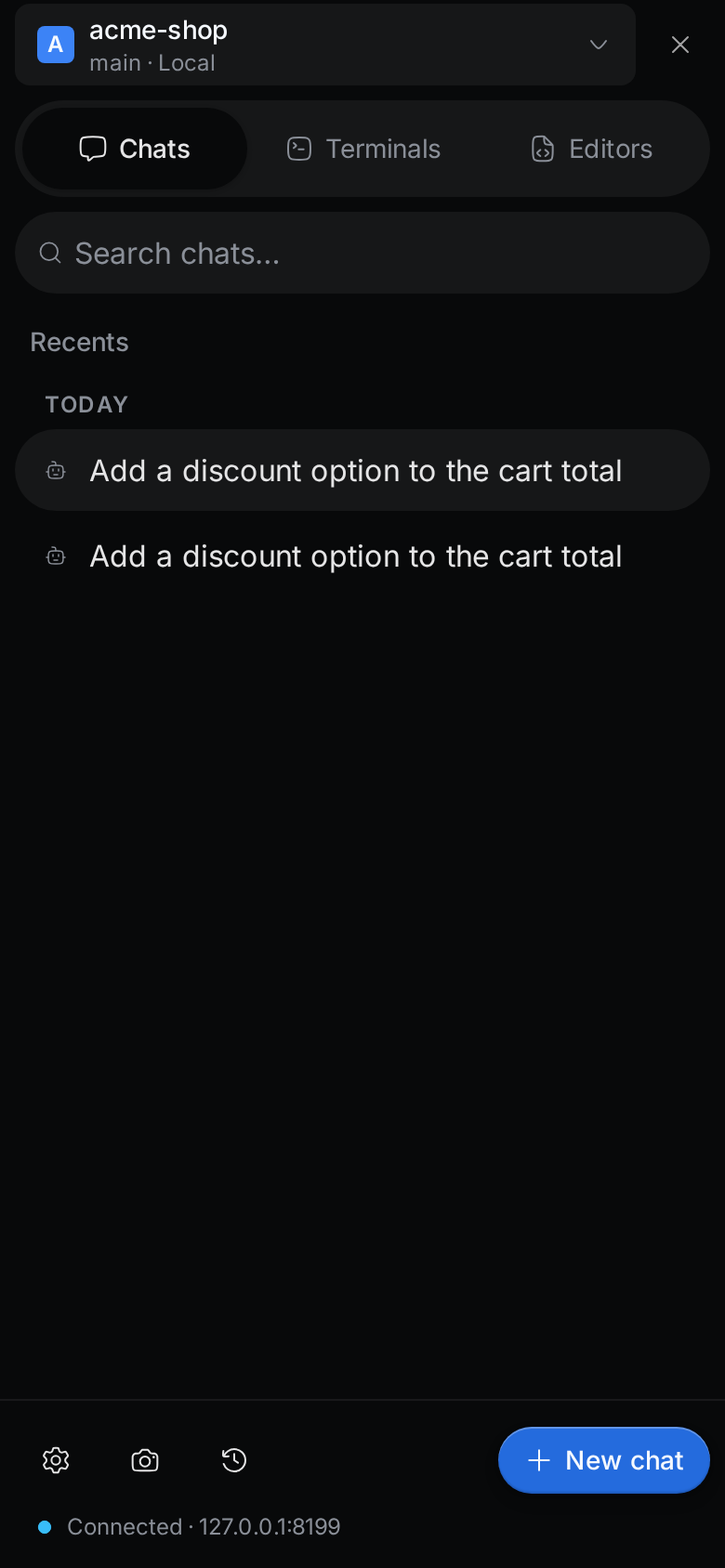
- The project at the top. Tap it to switch projects.
- Chats, Terminals and Editors switch the list below. Chats shows a number when a chat waits for you.
- Search chats… filters the chat list.
- The list. Tap an item to open it.
The bottom of the side menu has these buttons:
- Settings (gear) opens the app settings.
- Snapshots (camera) opens your saved terminal layouts. See Terminals.
- Git history (clock) opens the commit history of the project.
- New chat, New terminal or Browse files, depending on the list you are on.
The last line shows the connection, for example Connected · termul.example.com. If the server stops, it shows Host offline and a Retry button.
Use the More menu
In a chat, tap More (⋯) for the actions that don't fit in the top bar.
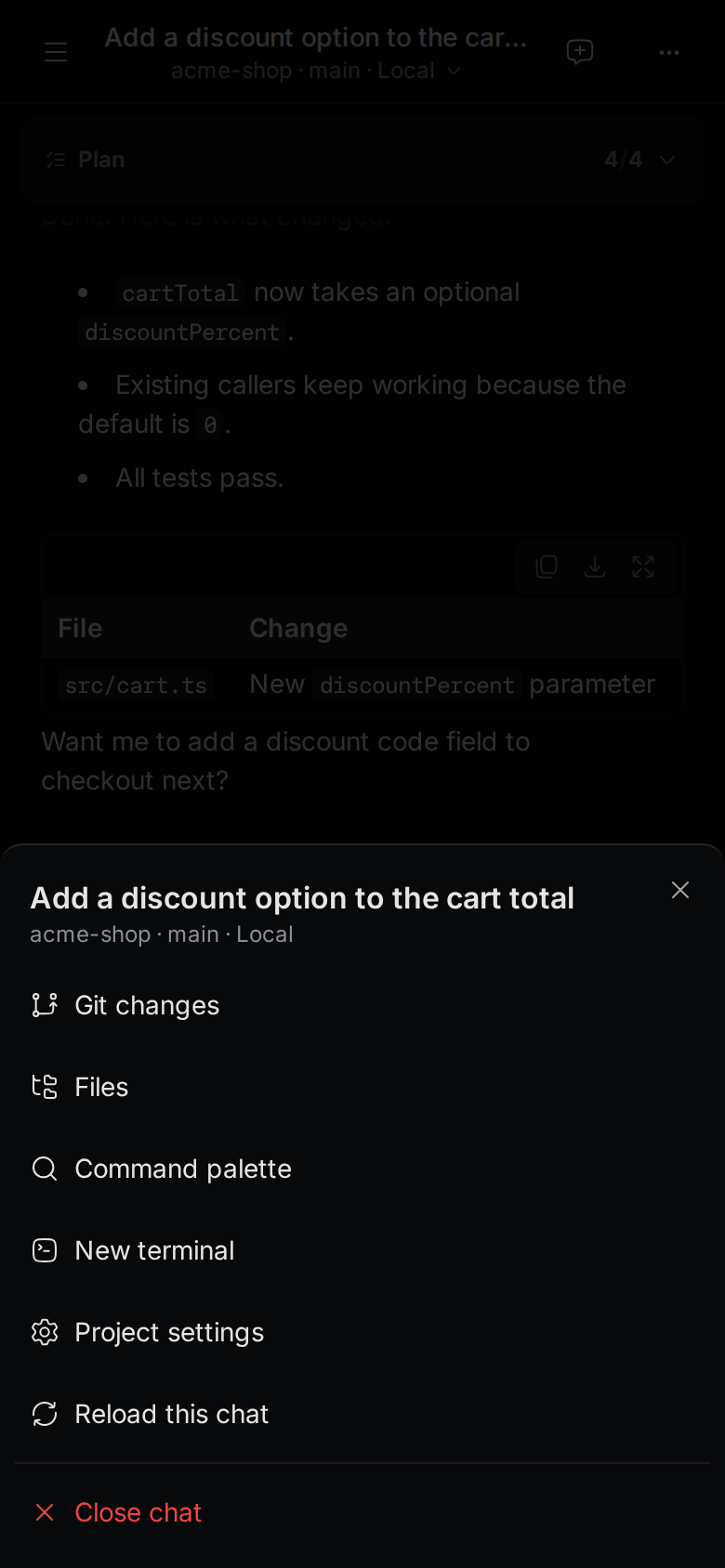
- Git changes opens the changed files and the commit form.
- Files opens the file browser.
- Command palette opens the command palette.
- New terminal opens a terminal in the project.
- Project settings opens the settings of this project.
- Reload this chat restarts the chat on a new agent process.
- Close chat closes the chat.
On other tabs, such as a file or git history, the last item is Close tab.
Answer an approval
When an agent asks for permission, the chat shows Approval needed above the message box. The agent waits until you answer.
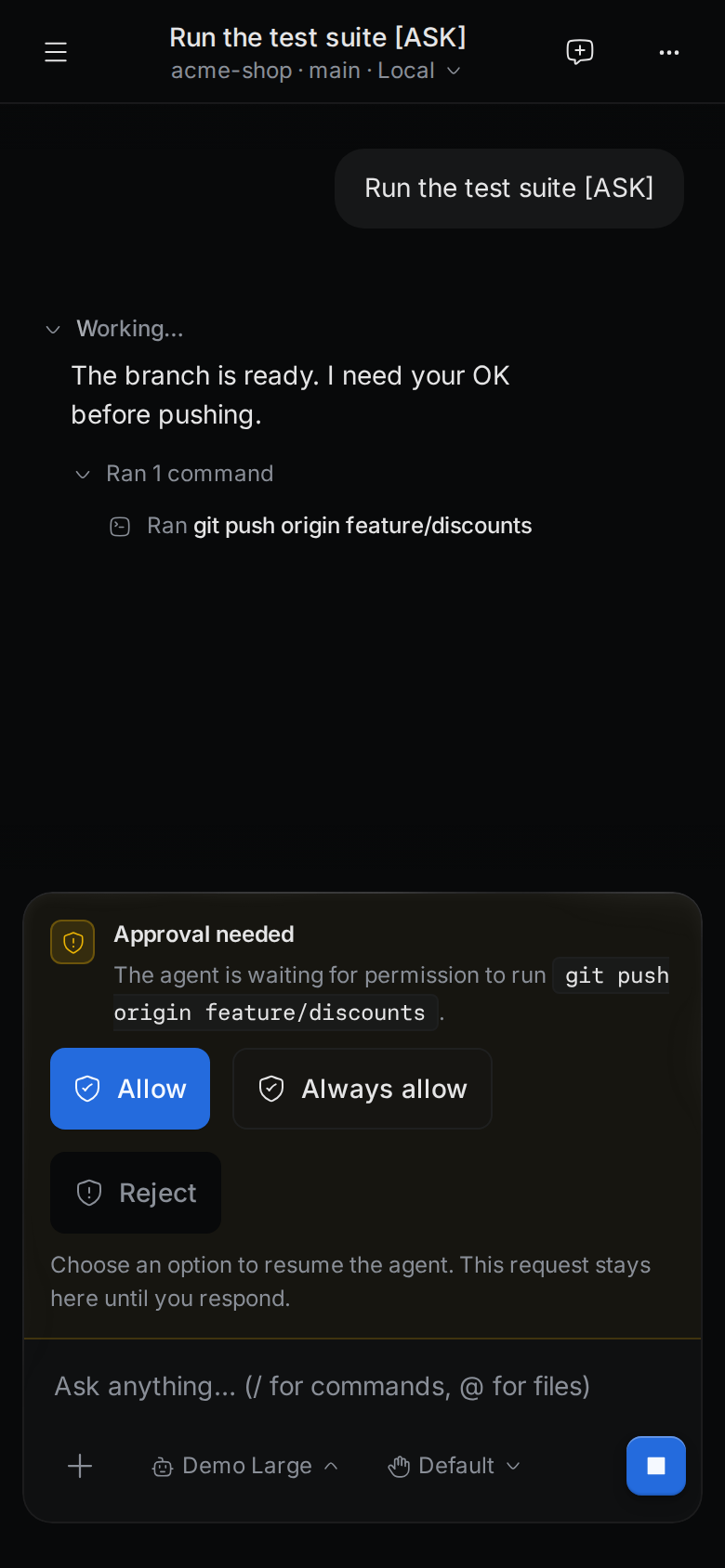
Tap one of the buttons. The agent decides which buttons you get. They are often Allow, Always allow and Reject.
For a short moment after the card appears, Termul ignores taps on it. This stops a tap meant for something else from approving by accident.
If a chat in the background needs you, the top bar shows a yellow number. Open the side menu. Chats shows the same number, and the chat that waits is in the list. To get a notification instead, see Get notifications.
Use a terminal
To open a terminal, tap New terminal in the top bar of a terminal, in the More menu, or at the bottom of the Terminals list.
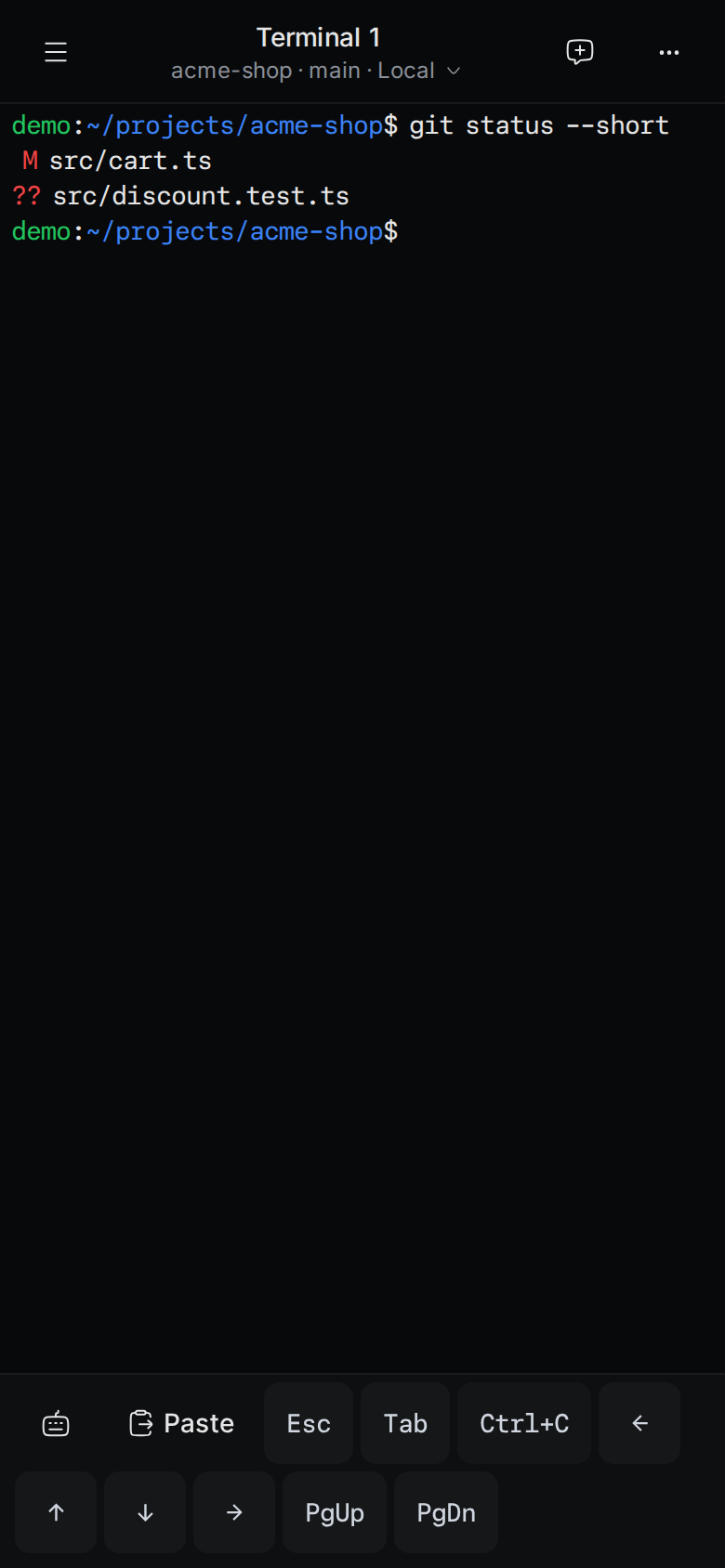
A phone keyboard has no Esc, Tab or arrow keys, so Termul adds a key bar under the terminal:
- Paste pastes the text from your clipboard.
- Esc, Tab and Ctrl+C send those keys.
Ctrl+Cstops the running command. - The four arrows move the cursor or walk through your command history.
- PgUp and PgDn scroll programs that use those keys.
The keyboard button at the left of the key bar hides the keys. Tap it again to show them.
Tap Terminal actions (⋯) for more:
- Rename terminal.
- Restart terminal.
- Command history to find and run an earlier command.
- Git changes, Files, Command palette and Project settings, as in the More menu.
- Close terminal.
Browse and edit files
Tap More, then Files. You can also tap Browse files at the bottom of the Editors list.
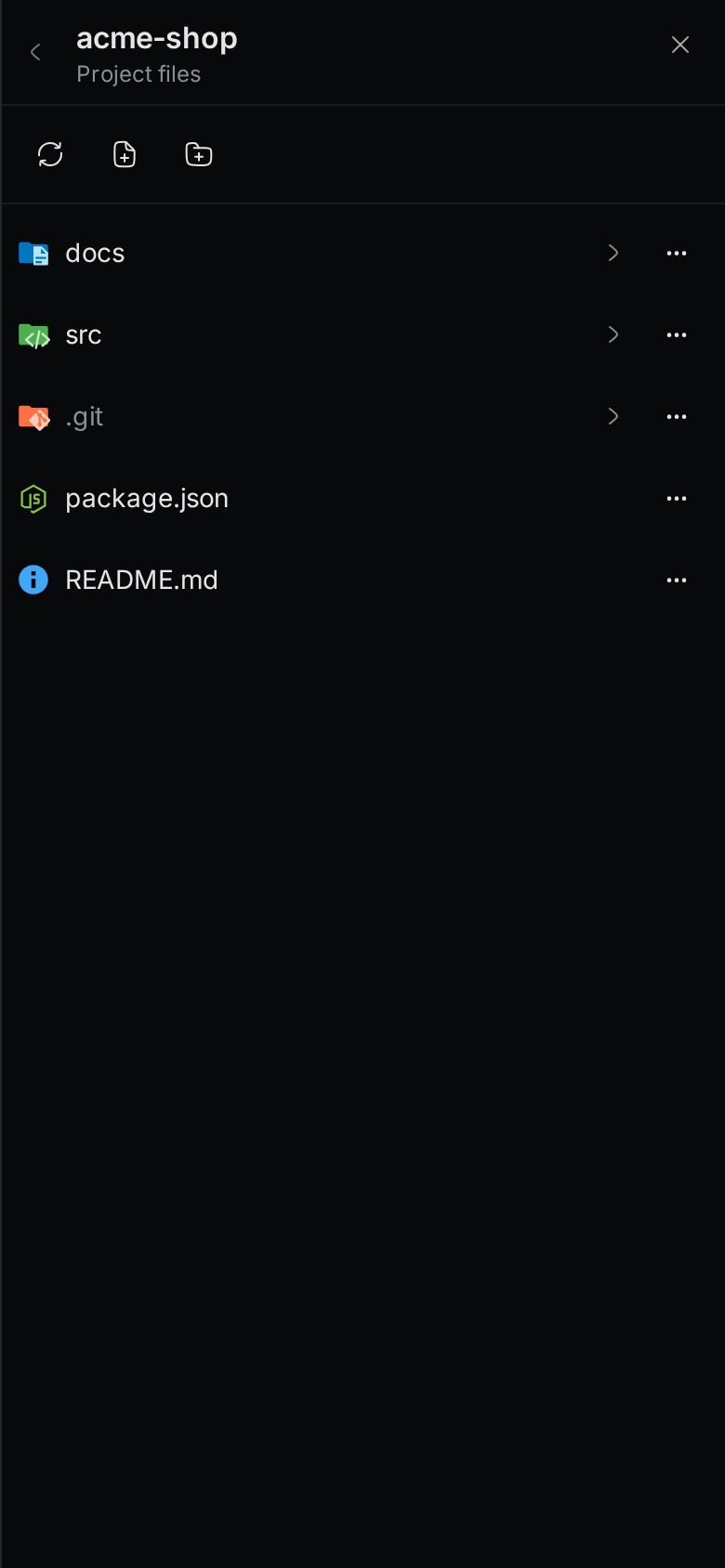
- Tap a folder to open it. Tap the back arrow to go up.
- Tap a file to open it in the editor. The editor has a Save button.
- The buttons at the top refresh the folder and create a New file or a New folder.
- Tap ⋯ next to an item to Rename, Duplicate or Delete it.
Files you opened are in the Editors list of the side menu.
Commit your changes
Tap More, then Git changes.
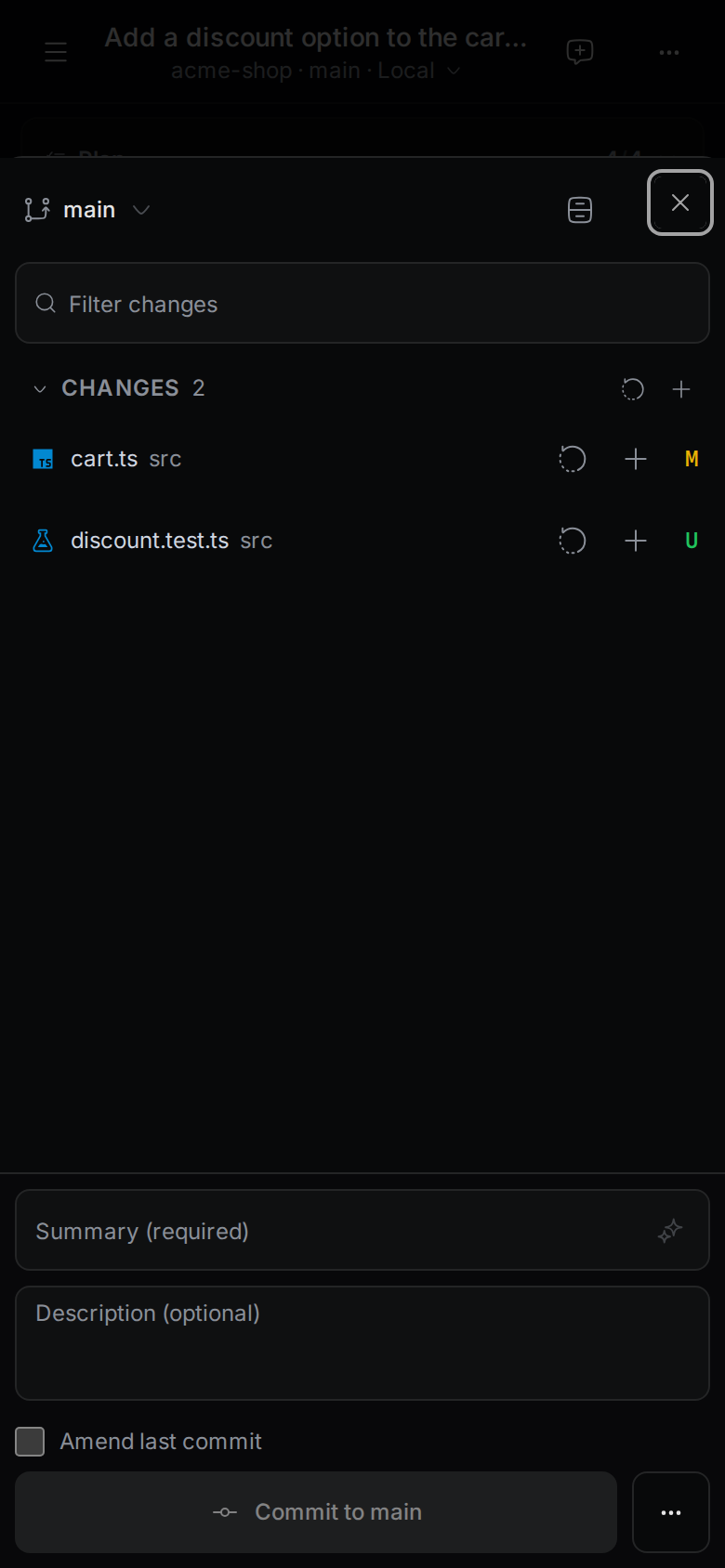
- Tap + next to a file to stage it, or + next to CHANGES to stage all files.
- Tap the round arrow next to a file to discard its changes.
- Tap the branch name at the top to switch branches.
- Type a Summary, and a Description if you want, then tap the commit button.
For more about git in Termul, see Git.