Install as an app and get notifications
Add Termul to your phone's home screen and get alerts when an agent finishes or needs you.
You can add Termul to your home screen or your app list. It then opens in its own window with the Termul icon, without the browser's address bar. You can also let Termul send notifications.
Use HTTPS
Browsers allow installing and notifications only on a secure address. That means one of these:
- An
https://address, such as the link from sharing your desktop app or a server behind an HTTPS reverse proxy. localhost, on the same machine as the server.
On a plain http:// address, such as http://192.168.1.20:8080, Termul works as a normal browser tab. The browser offers no install option and shows no notifications.
Install Termul
Termul has no install button of its own. Use the browser's install option:
- Android, Chrome. Open the browser menu and tap Add to Home screen or the install prompt.
- iPhone and iPad, Safari. Tap Share, then Add to Home Screen.
- Desktop Chrome or Edge. Click the install icon in the address bar, or use the browser menu.
On an iPhone or iPad, the installed app doesn't share saved data with Safari. The first time you open it, Termul may show Server access token required. Paste the token once. See Enter the token.
The installed app still needs the server. Without a connection it opens, but chats and terminals don't work until the server is back.
Get notifications
Termul can notify you when:
- A terminal that was busy goes quiet.
- An agent chat finishes its turn and has nothing queued.
- An agent chat waits for an approval or an answer.
The first time Termul wants to show a notification, the browser asks for permission. Allow it. If you blocked notifications before, allow them for the site in your browser settings.
Termul doesn't notify you about the chat or terminal you are looking at.
To choose which notifications you get:
- Open Settings. On a phone, tap Open menu, then the gear button. In a desktop browser, press
Alt+,. - Open Behavior.
- Under Notifications, turn these on or off:
- Notify when a terminal agent finishes
- Notify when an agent chat turn finishes
- Notify when an agent chat needs you
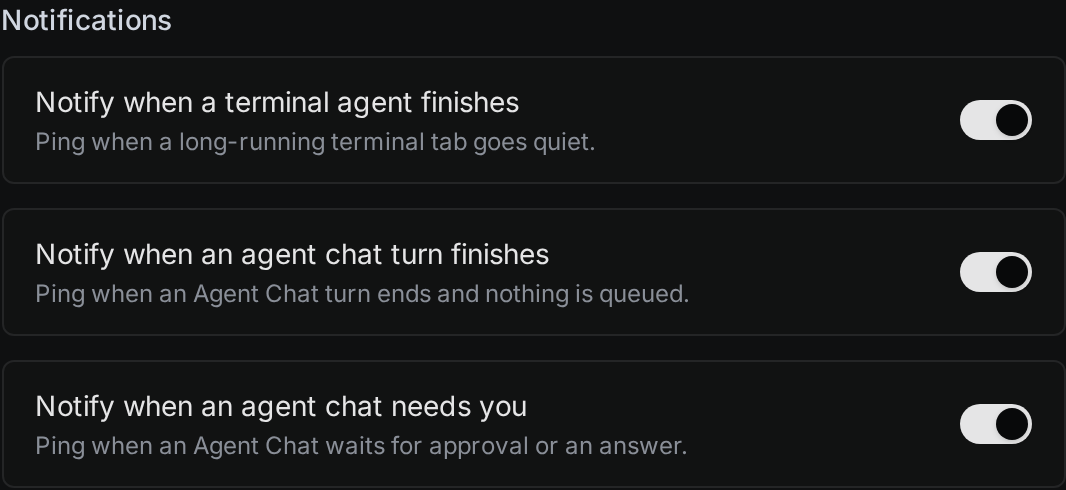
All three are on by default.