Stage and commit
Pick the changes for your next commit, write the message, and push.
Stage the changes you want to keep together, write a message, and commit. You can stage whole files, one block of changes, or single lines. All of this happens in the Changes tab of the side panel.
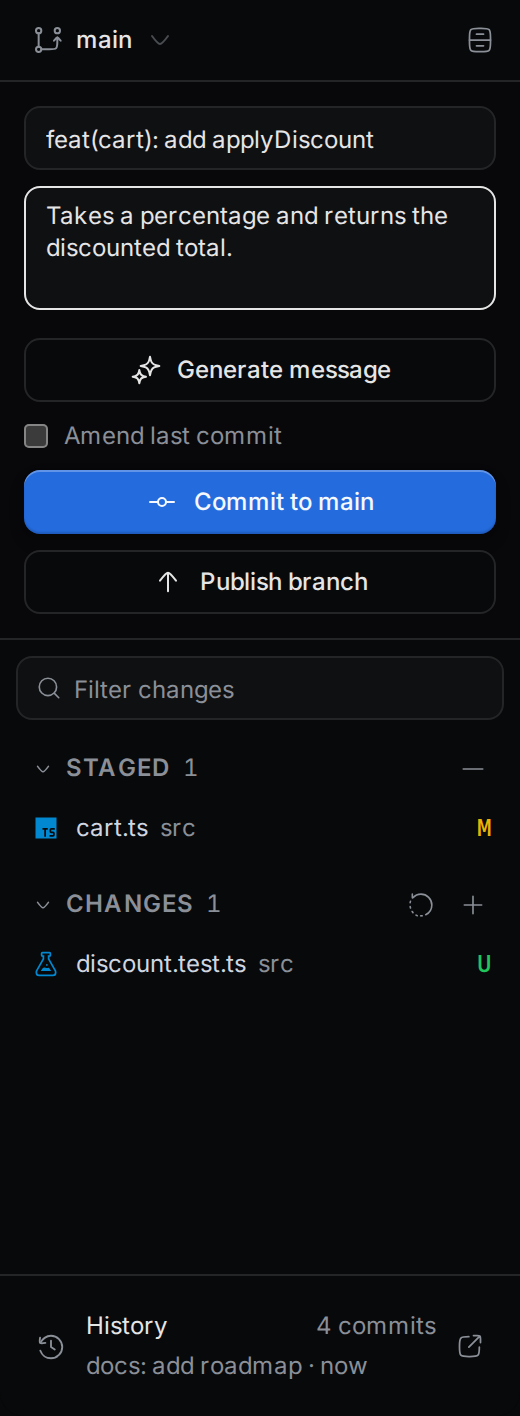
Stage and unstage files
Hover over a file to see its buttons.
- To stage a file, click Stage changes (the plus icon) on a file in Changes. The file moves to Staged.
- To unstage a file, click Unstage changes (the minus icon) on a file in Staged. The file moves back to Changes.
- To stage every file, click Stage all changes on the Changes header.
- To unstage every file, click Unstage all changes on the Staged header.
To act on several files at once, select them first. See Select several files.
Discard changes
Discarding puts a file back the way it was at the last commit.
- Click Discard changes (the arrow icon) on a file in Changes. To discard every file, click Discard all changes on the Changes header.
- Click Discard to confirm.
You cannot undo a discard. If the file is new and untracked, discarding deletes it from disk. Discard all changes deletes every untracked file in the list.
You can discard only changes that are not staged. To discard a staged change, unstage it first.
Stage part of a file
Open the file's diff first. See Open a diff.
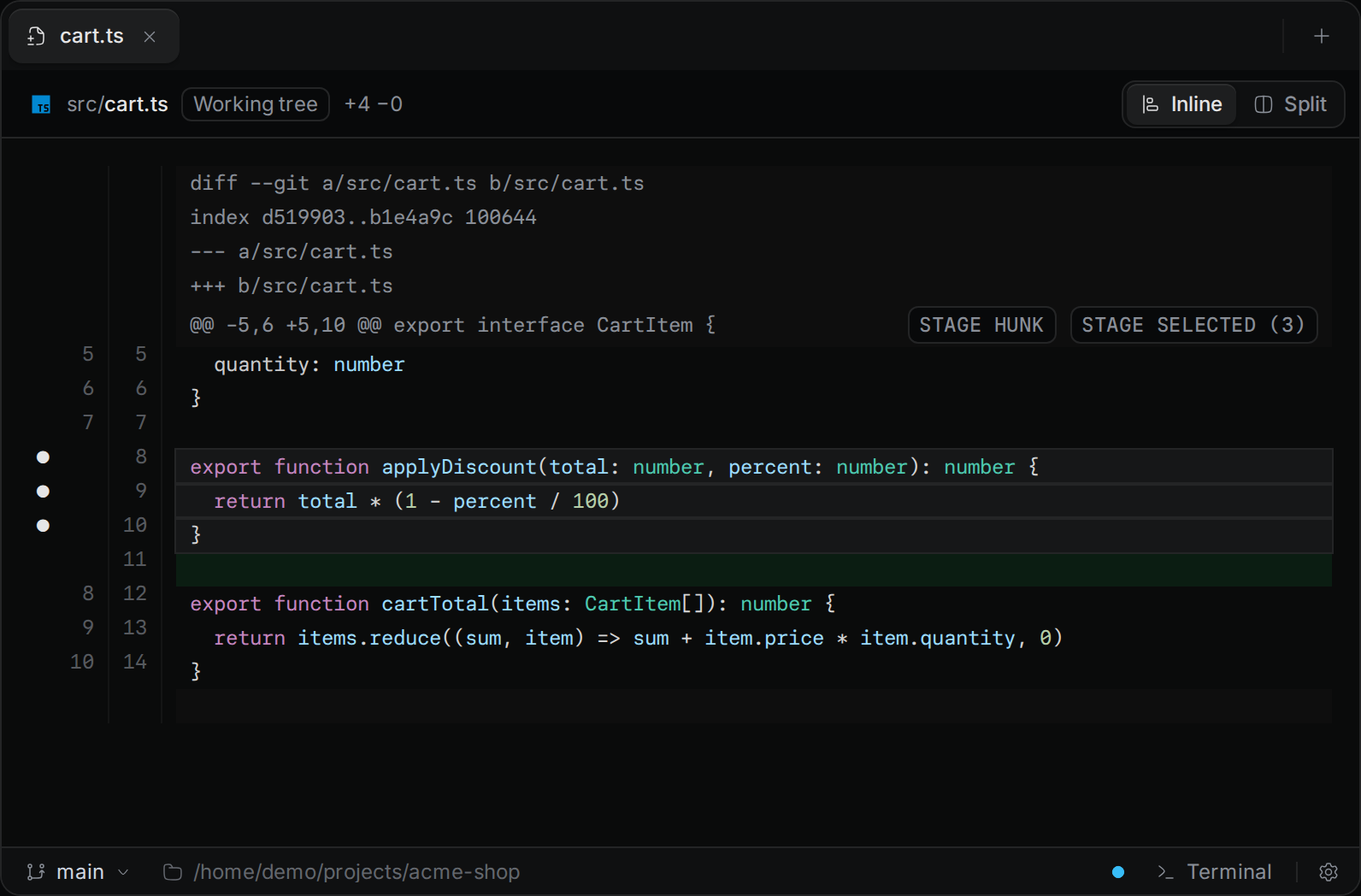
Stage one block of changes. Each block of changes in a diff starts with a header line. Click Stage hunk on that line. In a staged diff, the button is Unstage hunk. This works in both the Inline and the Split view.
Stage single lines.
- Switch the diff to Inline.
- Click the narrow strip to the left of the line numbers, next to an added or removed line. A dot marks the selected line.
- Click more lines to add them. Click a selected line again to clear it.
- Click Stage selected in the block's header. The number in brackets is how many lines you selected.
In a staged diff, the button is Unstage selected. You can select only added and removed lines, not the unchanged lines around them.
Commit
- Stage the changes you want to commit.
- Type a short summary in Summary (required).
- Optional: add more detail in Description (optional).
- Click Commit to followed by your branch name, for example Commit to main.
The button stays disabled until you stage at least one file and write a summary.
Change the last commit
To fix the message of your last commit, or add forgotten changes to it:
- Optional: stage the changes you want to add.
- Select Amend last commit. If the message boxes are empty, they fill with the last commit's message.
- Edit the message.
- Click Amend commit.
With Amend last commit selected, you can commit with nothing staged. That changes only the message.
If the last commit is already pushed, Termul asks you to confirm with Amend anyway. Amending a pushed commit means you must force-push it from a terminal. Termul has no force-push button.
Let an agent write the message
Generate message asks an AI agent to read your staged changes and write a summary and a description.
- Stage your changes.
- Click Generate message. The button shows Generating... while the agent works.
- Read the result in Summary and Description, edit it if you want, and commit.
Before you start:
- You need an agent that is set up. Termul uses the agent that is selected in the agent picker of the new chat screen. See Agent setup.
- The message replaces anything you already typed in Summary and Description.
- The agent sees only staged changes. If they are very large, Termul refuses to send them and shows a message. Commit in smaller parts.
- The agent has 60 seconds to answer.
If no agent is selected, Termul shows a message that asks you to configure and select an agent. Set up an agent, pick it on the new chat screen, then try again.
Push your commits
Under the commit button, the push button shows what it will do:
- Publish branch: the branch is not on the remote yet. Click it to push the branch to
originand track it. - Push with a number: you have that many commits to push. Click it to push them.
- Up to date: there is nothing to push.
A down arrow with a number means the remote has commits you do not have. Termul does not fetch or pull. The number is only as new as your last git fetch, and you pull from a terminal.
If the push needs you to type a password or a passphrase, it fails. Set up an SSH key or a credential helper for Git first.