See your changes
Find the files you changed and read their diffs.
The Changes tab lists every file that differs from your last commit. Click a file to see exactly which lines changed.
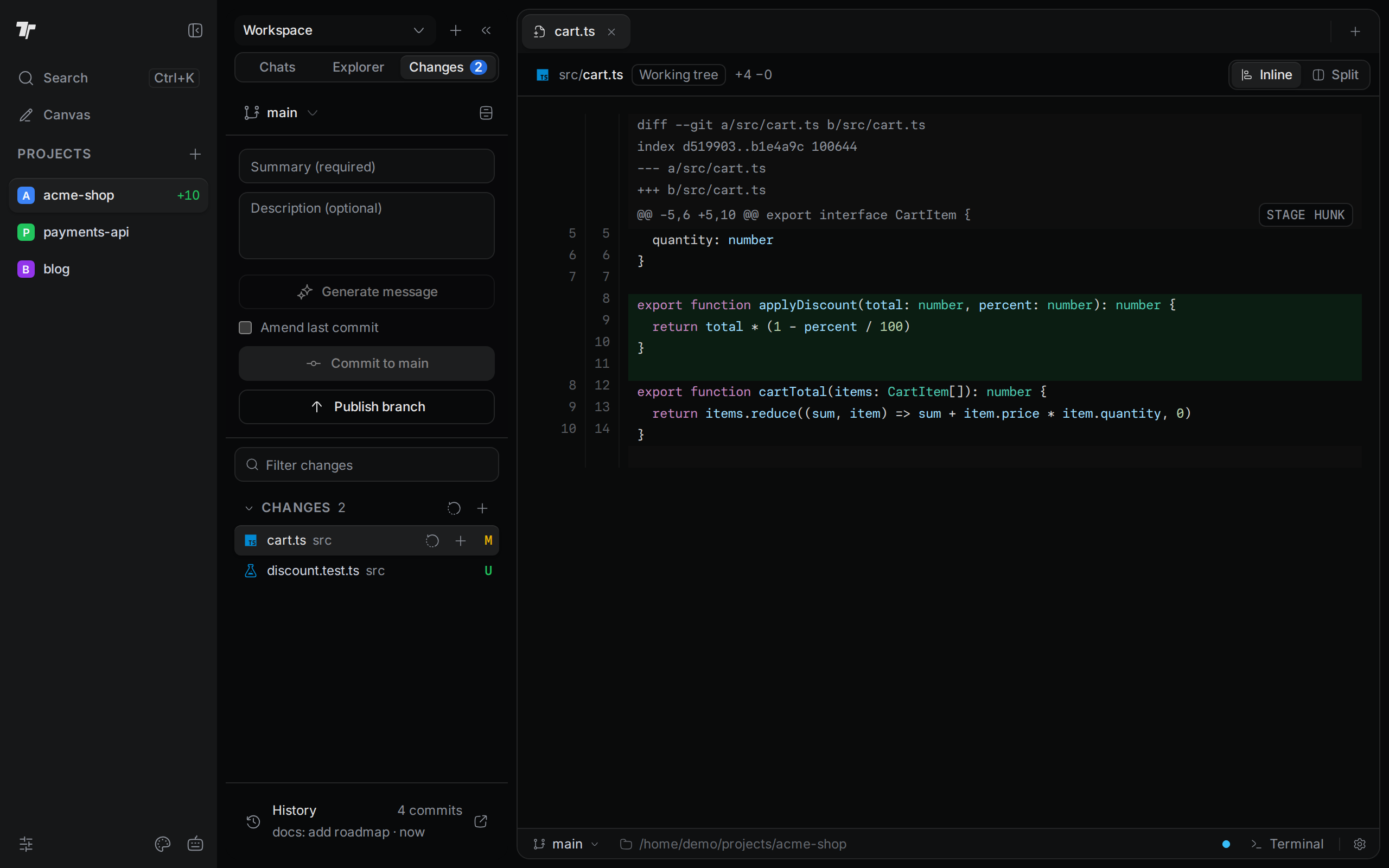
Open the Changes tab
Click Changes at the top of the side panel. The number next to the label is how many files changed.
If the side panel is hidden, click Show side panel or press Ctrl+B (Cmd+B on macOS). When the projects rail is collapsed, click the Changes icon in the rail.
The tab shows the checkout you picked in the Workspace menu at the top of the side panel. That is the project folder, or a worktree of it. See Worktrees.
Read the file list
From top to bottom, the tab shows:
- The current branch and the Stash changes button.
- The commit box. See Stage and commit.
- The Filter changes box. Type part of a file path to shorten the list.
- Staged: files that go into your next commit. This section only shows when it has files.
- Changes: files you changed but did not stage yet. New files that Git does not track yet are here too.
- Stashes: work you put aside. This section only shows when you have stashes. See Branches and stashes.
- History: the number of commits and the last commit message. See Browse history.
A file can be in Staged and Changes at the same time. That happens when you stage a file and then edit it again.
Each file shows its name, its folder, and a letter for its status:
| Letter | Meaning |
|---|---|
| M | Modified. The file changed. |
| A | Added. A new file that you staged. |
| U | Untracked. A new file that Git does not track yet. |
| D | Deleted. |
| R | Renamed. |
Hover over the letter to see the word. If nothing changed, the list says No changes detected.
Open a diff
Click a file. Its diff opens in a tab in the main area. Click the same file again to go back to that tab.
- A file from Changes opens with the label Working tree. It shows what you changed but did not stage.
- A file from Staged opens with the label Staged, and the tab name ends with "(staged)". It shows what goes into the next commit.
The top of the diff shows the file path and how many lines were added and removed. Added lines are green and removed lines are red. Inside a changed line, the exact words that changed are highlighted. A new file shows every line as added.
Switch between inline and side-by-side
Use the buttons at the top right of the diff:
- Inline shows old and new lines in one column. This is the default. You can stage single lines only in this view.
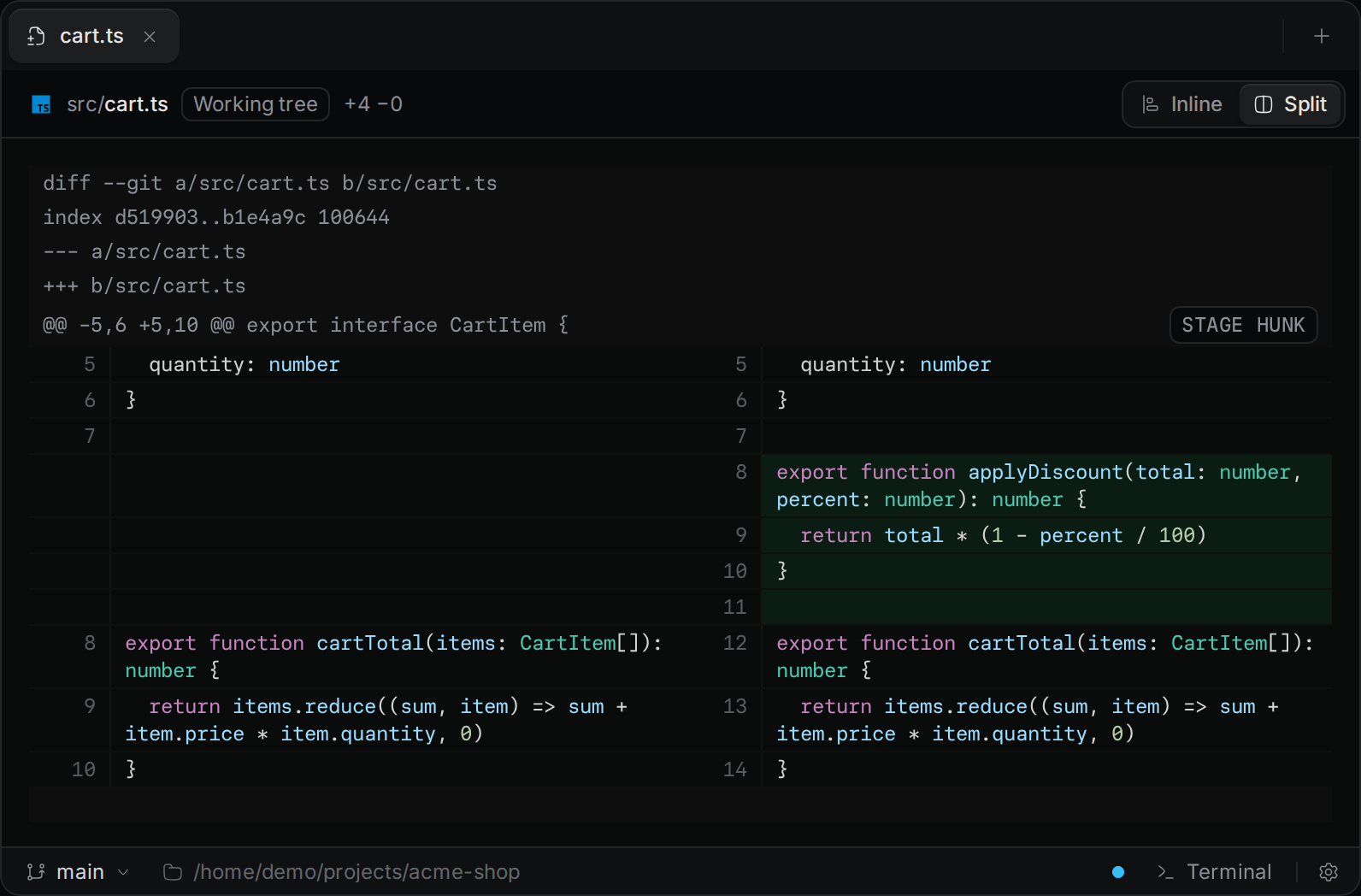
- Split shows the old file on the left and the new file on the right.
Termul remembers your choice for every diff you open.
Select several files
Ctrl+click (Cmd+click on macOS) adds a file to the selection or removes it.Shift+click selects every file between the last file you clicked and this one.
A selection stays inside one section. When you click a button on a selected file, the action applies to every selected file. These clicks select files but do not open a diff.
On a phone
In the browser on a phone, tap the More button (⋯) at the top of the screen, then tap Git changes. The file list and the commit box open in a sheet. Tap a file to see its diff, and tap Back to file list to return.