Browse history
Read the commit graph, find a commit, and open the files it changed.
The Git History tab shows the commits in your project as a graph. Use it to see what changed, who changed it, and when.
Open the history
- Open the Changes tab in the side panel.
- Click the History row at the bottom of the panel. The row shows the number of commits and the last commit message.
The Git History tab opens in the main area. It shows the history of the checkout you have open in the Changes tab. If that is a worktree, you see the worktree's history.
On a phone, open the drawer and tap Git history. The phone version is a simple list with a filter. It has no scope menu, no author filter, and no details pane.
Read the graph
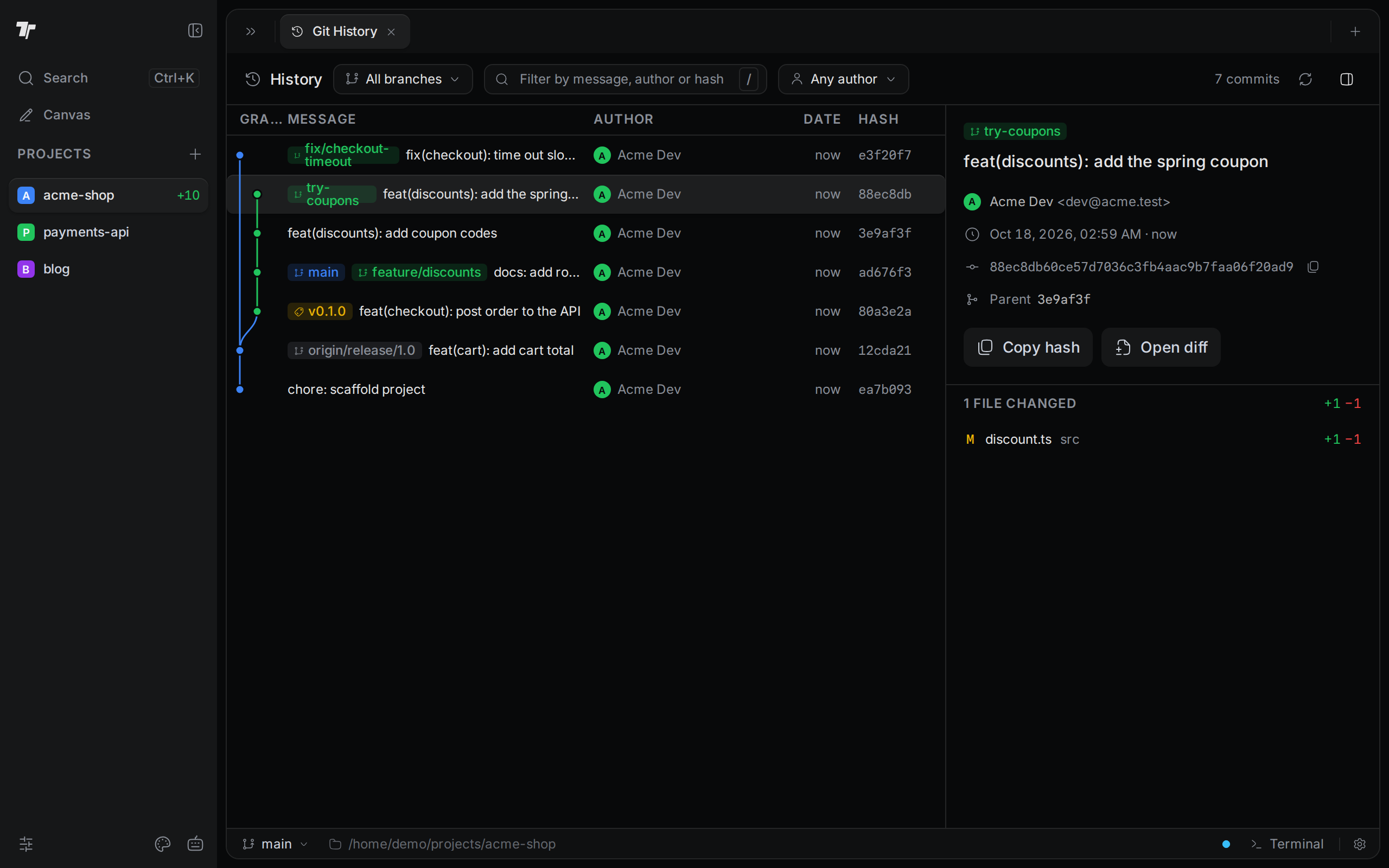
Each row is one commit. The columns are Graph, Message, Author, Date, and Hash.
- The Graph column draws one dot per commit. Lines connect each commit to its parents, and each branch line has its own color.
- Colored labels in front of the message show the branches and tags that point at that commit. The branch you have checked out is highlighted.
- Date shows how long ago the commit was made. Hover over it to see the exact date.
- Hash shows the short commit hash.
The tab loads the newest 200 commits.
Choose which branches to show
The scope menu next to the History title sets which commits the graph shows:
- All branches shows the commits of every branch and every tag. Stashes show up too, labelled
refs/stash. This is the default. - Current branch shows only the commits of the branch you have checked out.
Find a commit
Type in the Filter by message, author or hash box. Press / to jump to the box from anywhere in the tab.
The filter matches the first line of the commit message, the author name, the hash, and branch or tag names. It ignores upper and lower case. The count on the right changes to show how many commits match, for example "2 of 7". While a filter is active, the graph lines are hidden.
To show only one person's commits, open the Any author menu and pick a name. The menu lists the authors of the loaded commits, with the most active author first.
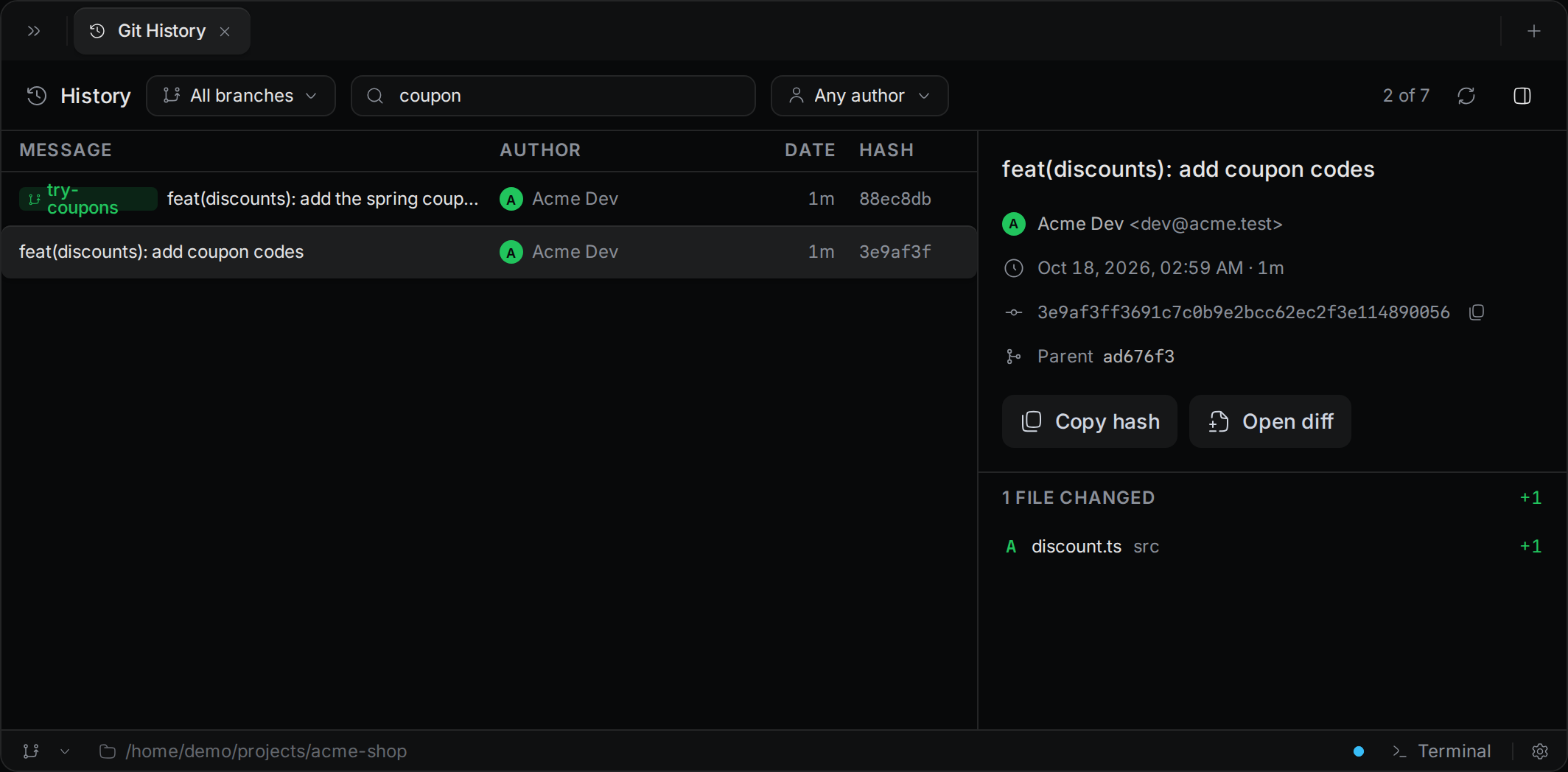
To clear the filter, press Escape in the filter box.
See what a commit changed
Click a commit to show it in the details pane on the right. The pane shows:
- The full commit message.
- The author and their email address.
- The date and time.
- The full hash.
- The parent commit or commits. Click a parent to select it.
- The list of changed files, with the number of added and removed lines for each.
Click a file in the list to open its diff in a new tab. The diff compares the file with the commit's parent. Open diff opens the first changed file. You can also double-click a commit, or select it and press Enter.
To hide the pane, click Hide details in the toolbar or press Escape. Click Show details to bring it back. Drag the left edge of the pane to make it wider or narrower.
When the tab is narrow, the pane covers the right part of the list. Close it with the X at its top right. To give the tab more room, hide the side panel with Ctrl+B (Cmd+B on macOS).
Copy a commit hash
Do one of these:
- Click Copy hash in the details pane.
- Click the copy button next to the full hash.
- Select the commit in the list and press
Ctrl+C(Cmd+Con macOS).
Termul copies the full hash. The confirmation message shows the short hash.
Keyboard keys
| Key | Where | What it does |
|---|---|---|
Up / Down | Commit list | Select the previous or next commit. |
Enter | Commit list | Open the diff of the first changed file. |
Ctrl+C (Cmd+C on macOS) | Commit list | Copy the full hash of the selected commit. |
/ | Anywhere in the tab | Go to the filter box. |
Escape | Anywhere in the tab | Hide the details pane. |
Escape | Filter box | Clear the filter. If it is already empty, go back to the list. |
Down or Enter | Filter box | Go to the list. |
Click Refresh history to load commits made since you opened the tab.