Start a chat
Open the agent launcher, pick an agent and a model, and send your first prompt.
The agent launcher is where every chat starts. You type what you want, choose which agent does the work, and send. The chat then opens in a tab and the agent starts on your request.
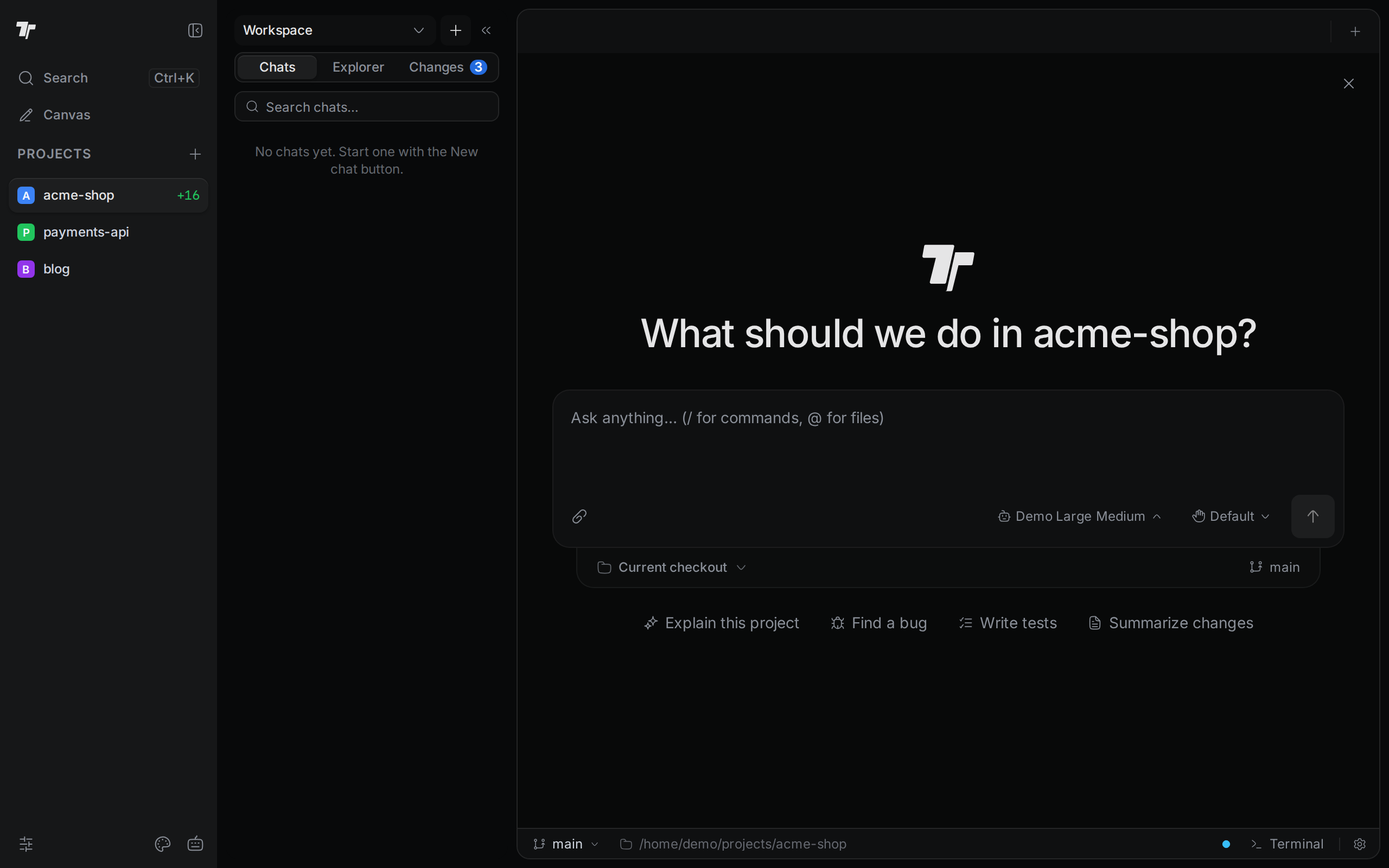
Open the launcher
Use any of these:
- Press
Ctrl+T(Cmd+Ton macOS). In a browser tab, the default key isAlt+T, because the browser keepsCtrl+Tfor itself. - Click New chat (the + button) at the top of the side panel.
- Click New tab (the + at the end of the tab bar), then click New chat.
- Open the command palette with
Ctrl+K(Cmd+Kon macOS) and choose Agent Launcher. The palette also has Launch Agent. That item opens an agent's own text interface in a terminal instead of a chat.
A pane with no tabs shows the launcher on its own. When the launcher opens over a tab, close it with Esc, with Ctrl+T again, or with Close agent launcher (the X in the corner).
If you close the launcher by accident, your text is not lost. Termul keeps the unsent draft for each project and puts it back the next time you open the launcher.
Send your first prompt
Type what you want the agent to do. For example, "Add a discount option to the cart total".
To start from an example, click a starter prompt under the box: Explain this project, Find a bug, Write tests, or Summarize changes. The starter fills the box with a full prompt. It does not send it, so you can edit the text first.
Check the agent and the model. The model button, to the left of the mode button and the send arrow, shows the current model. When the agent has effort levels, the level follows the model name. To change them, see Pick an agent and a model.
Press Enter, or click Start agent chat (the arrow button).
The chat opens as a tab in the same pane, and the agent starts working. Termul remembers the agent and the options you chose. The next chat starts with the same picks.
Pick an agent and a model
Click the model button in the launcher. A panel opens with three parts:
- A search box. Type part of a model or agent name to filter the list.
- A row of tabs, one per agent. The tab with ... (More agents) lists the rest.
- The models of the selected agent. Under them, a row of effort levels and the fast mode button, when the agent has them.
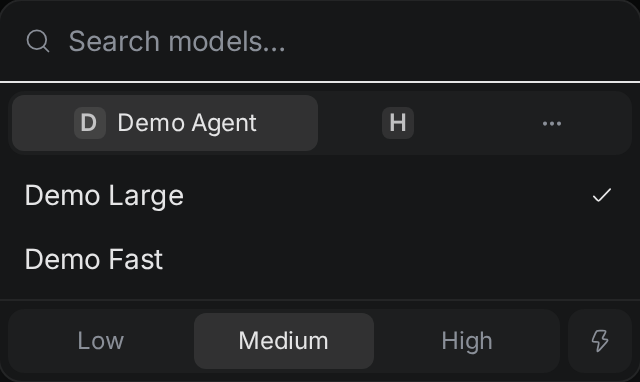
Click an agent tab, then click a model. If the agent is not ready, the panel says so instead of listing models. For example, it says the agent is not installed and offers an Install button. In the More agents list and in search results, an agent that is not ready shows a badge, such as Install, Needs Node, Needs uv, Manual install, or Unavailable. To get an agent ready, see Set up agents.
Some agents have no model choice. Their tab shows "This agent gives no model choice."
Choose where the agent works
The strip under the message box decides which folder the agent works in. In a git project, click the first item in the strip to choose:
- Current checkout. The agent edits your project folder directly, on the branch shown on the right.
- Existing worktree. The agent works in a worktree you already have. Pick it in the list that appears. If the project has no worktrees, this option is off and shows "No worktrees yet".
- New worktree. Termul creates a new worktree for this chat before the agent starts. Pick the branch to start from in the Base branch list.
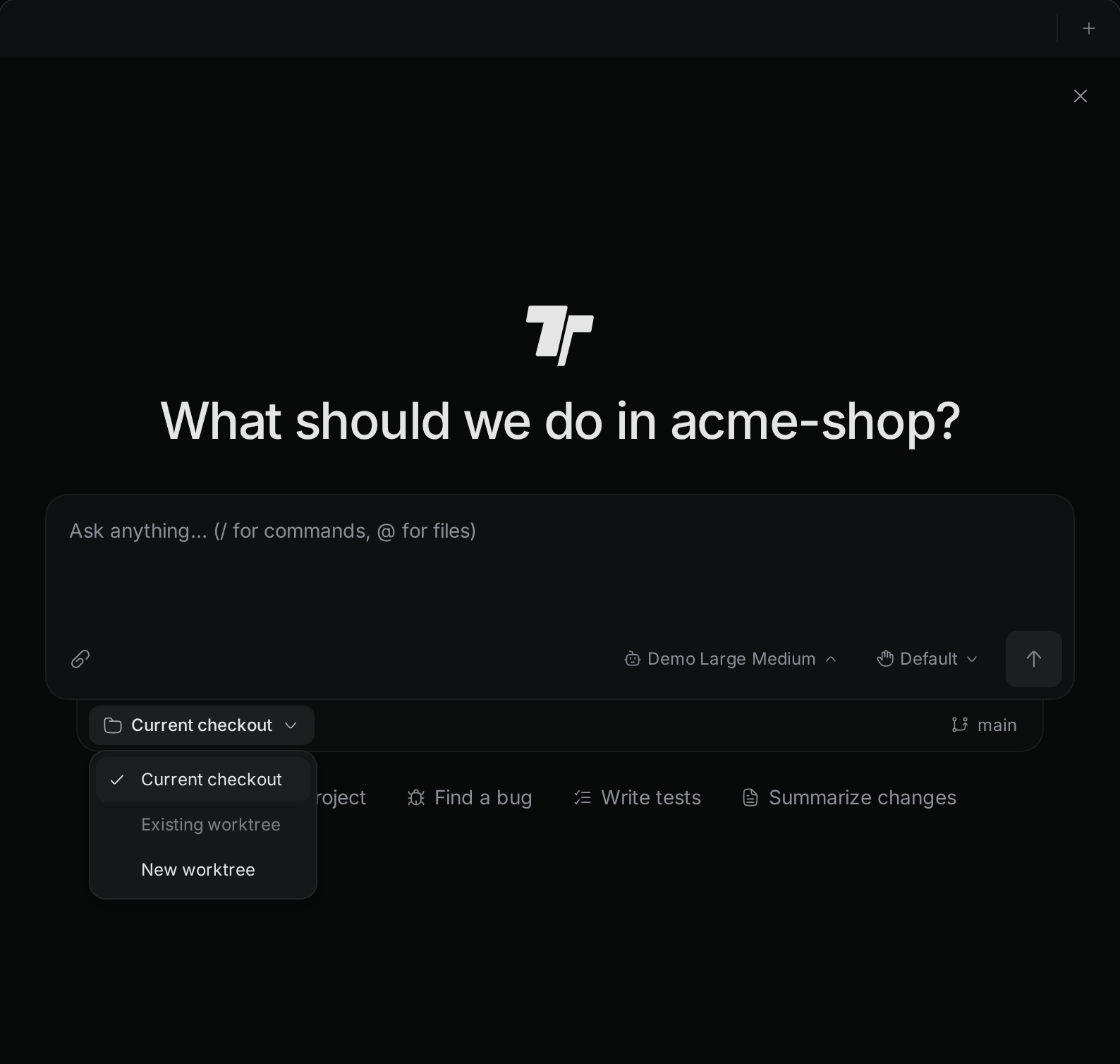
A worktree is a second folder for the same git repository, with its own branch. When a chat runs in its own worktree, the agent's edits stay out of the folder you work in. You can run several chats side by side without them changing the same files. Termul names the new branch chat/ followed by a short id. The chat shows the progress while Termul creates the worktree. If that fails, Termul shows an error, closes the chat tab, and opens the launcher again.
When the chat starts, its card in the Chats list shows the worktree's branch. The strip under the message box shows Worktree and the same branch.
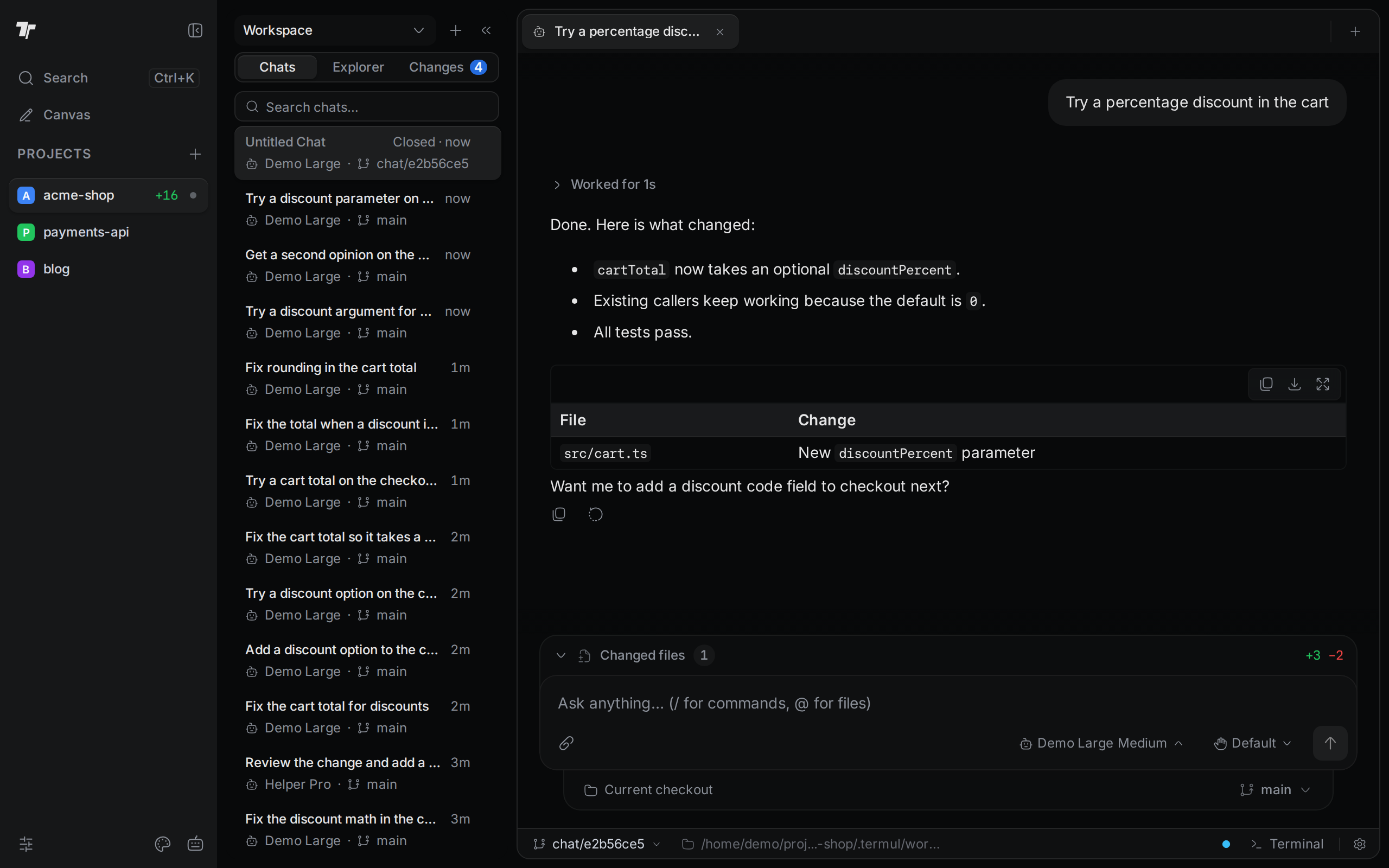
To merge, switch, or remove worktrees, see Worktrees.
A folder that is not a git repository shows Local in the strip. The agent always works in that folder.
When you use Termul in a browser and the server does not accept changes from remote clients, New worktree is off and shows "This server is read-only for remote clients." In a browser, Existing worktree is also off when every worktree is outside the project folder. It then shows "Outside the project folder; open it on the desktop app."