Find and reopen chats
Search your chats, pick up an old conversation, open a chat next to another one, or delete it.
Termul saves every chat with its project. The Chats tab in the side panel lists them, newest activity first, so you can return to any conversation and carry on where you left off.
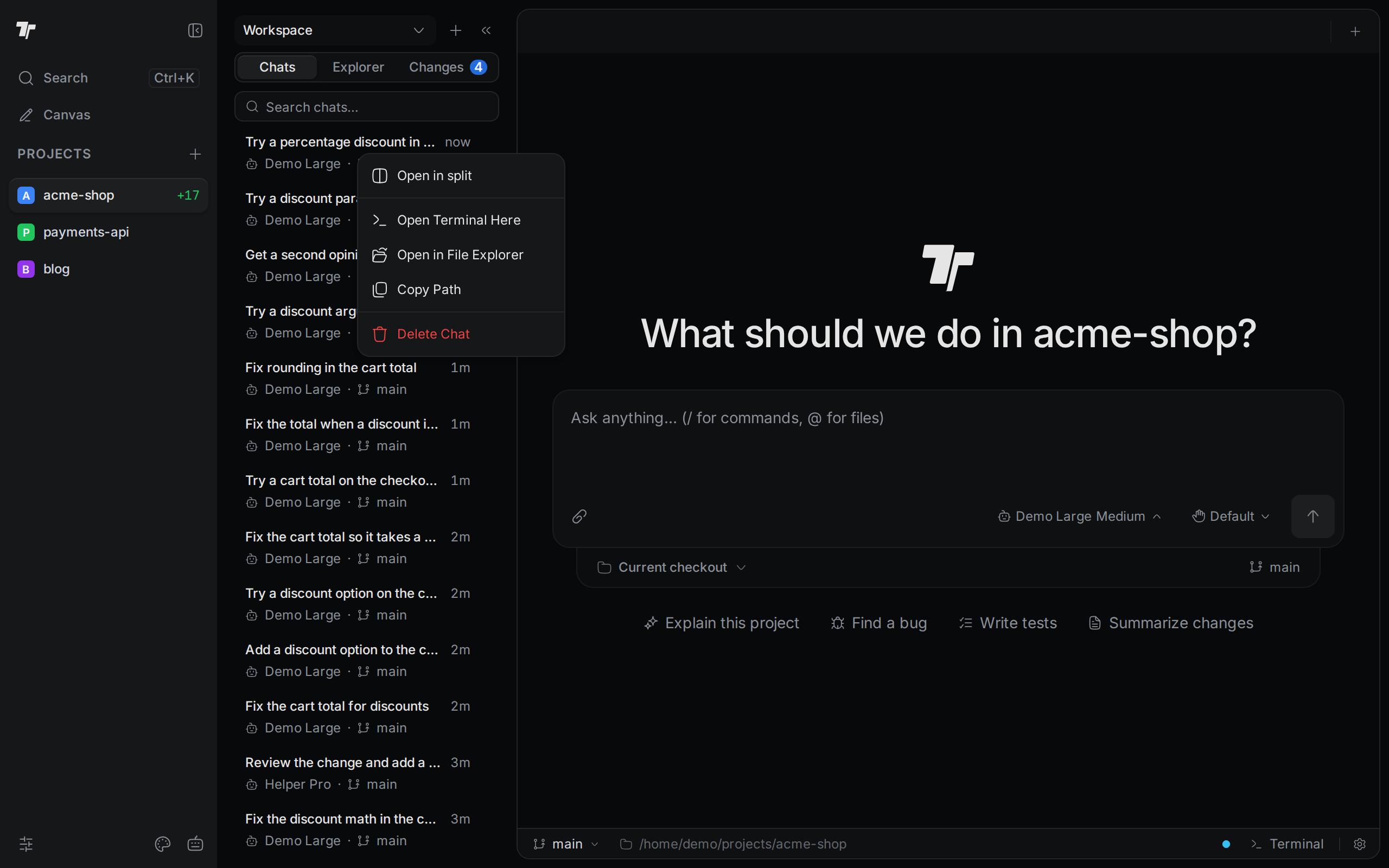
Read a chat card
Each card in the list shows:
- The chat's title. It starts as the first line of your first message, cut to 48 characters. Some agents give the chat a new title later.
- What the chat is doing. A spinner means the agent is working. Needs you means it waits for your answer. A dot with New marks a reply you have not seen. Otherwise, the card shows how long ago the chat was last active.
- The agent's icon, the model, and the git branch the chat works on.
A chat that ended with an error shows Failed. A closed chat has a dimmed title and shows Closed before the time.
The list shows the chats of the active project. The menu at the top of the side panel narrows it. It lists the project folder and each worktree by branch name. Pick a worktree to see only the chats that run in it. Pick the project folder's row, for example main, to see all of them.
Search your chats
Type in Search chats… at the top of the list. The search matches the chat title, the agent name, the model, and the branch. To clear it, click the X in the box or press Esc.
To move through the list with the keyboard, click or tab to a card, then use the up and down arrow keys.
Reopen and resume a chat
Click a card to open the chat in the current pane. If the chat is already open in a tab, Termul switches to that tab instead. If the chat is still running, you are back in the conversation right away.
A chat that sits idle stops after a while. Its history stays. To pick it up again, start typing or send a message. Termul starts the agent again and shows "Resuming chat…". A message you send waits in the queue until the agent is back.
If Termul cannot resume the chat on its own, a bar says "This chat stopped." Click Resume chat to try again.
To change how long an idle chat stays open, go to Settings > AI Agents > Close idle chats after. The default is 30 minutes. A chat that is working or waiting for your answer stays open.
Some agents cannot reload an old conversation. With those agents you can read the chat, but you cannot continue it. Start a new chat instead.
Open a chat next to another one
Right-click a card and choose Open in split. The chat opens in a new pane to the right of the active pane, so you can watch two chats at once. You can also drag a card onto a pane.
Open in split is off when the chat is already the only tab in the active pane.
Open the chat's folder
Each chat works in a folder, which is your project folder or a worktree. Hover a card and click the terminal button to open a terminal in that folder. The right-click menu also has:
- Open Terminal Here. Same as the terminal button.
- Open in File Explorer. Shows the folder in your system's file manager. In a browser, Termul copies the path instead.
- Copy Path. Copies the folder path.
Delete a chat
- Right-click the card and choose Delete Chat.
- Click Delete to confirm.
Deleting a chat removes it and its history, and closes its tab. You cannot undo it. The files the agent changed stay as they are.
Restart a chat's agent
After you change an agent's settings, such as its MCP servers or skills, a running chat still uses the old ones. To apply them, right-click the chat's tab and choose Reload this chat. Termul restarts the agent for this chat and keeps the conversation. It does not send your last message again.
Reload this chat is off while the agent is working, waiting for you, or has queued messages. It is also off for a stopped chat and for agents that cannot reload a conversation. When the message box shows an MCP badge, its popover has the same Reload this chat button.
Link to a chat
When a chat is open, the browser's address bar holds a link to it that ends in #/c/ and the chat's id. Bookmark the link, or open it in another tab, to go straight to that chat. The link opens the chat in its own project, even if a different project is active. If you reload the page, the same chat opens again.