MCP servers
Give your agents extra tools by adding MCP servers, such as an issue tracker, a database or a docs search.
An MCP server is a small program or web service that gives an agent extra tools, for example "list open issues" or "query the database". MCP stands for Model Context Protocol. You add a server once in Termul, and Termul offers it to every new agent chat.
Add MCP servers
You add servers by pasting JSON. Termul reads the mcpServers format that Claude Desktop and many MCP server READMEs use, so you can usually copy the config from the server's own docs.
- Open Settings with
Ctrl+,(Cmd+,on macOS) and click MCP Servers. - Click Add server.
- Paste the JSON in MCP JSON.
- Click Save.
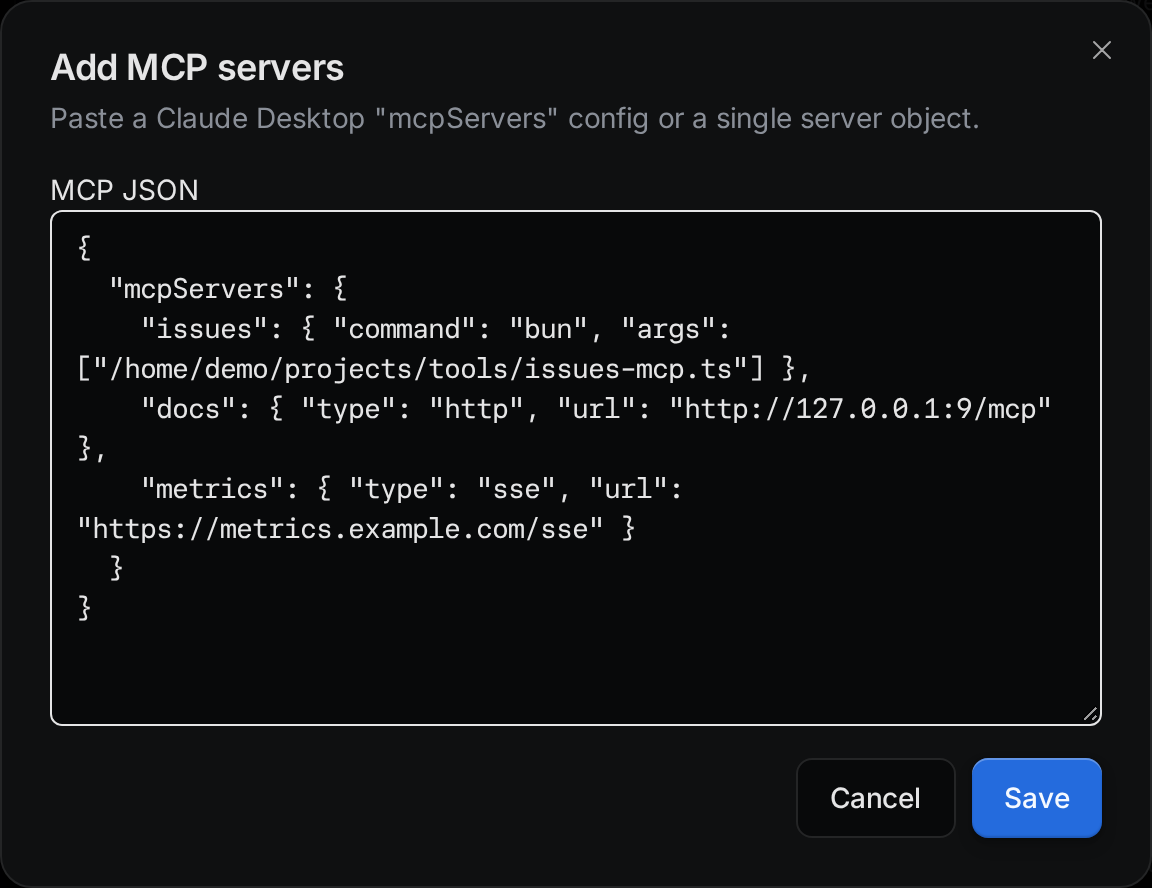
You can paste many servers at once in an mcpServers block, or a single server object on its own. If one server in the block has a mistake, Termul adds the others and tells you which one failed.
There are three kinds of server:
-
stdio: a program that runs on your computer. Give its
command, and optionalargsandenv.{ "mcpServers": { "issues": { "command": "npx", "args": ["-y", "@acme/issues-mcp"] } } } -
HTTP: a web service. Give its
url, and optionalheaders.{ "mcpServers": { "docs": { "type": "http", "url": "https://docs.example.com/mcp" } } } -
SSE: an older kind of web service. Set
"type": "sse"and give itsurl.{ "mcpServers": { "metrics": { "type": "sse", "url": "https://metrics.example.com/sse" } } }
If you leave out type, Termul treats a server with a command as stdio and a server with only a url as HTTP. Fields that Termul does not use are dropped.
env values and headers as plain text. Put a reference such as $GITHUB_TOKEN in the config instead of the token itself.Check that a server works
Each server has a row with a colored dot.
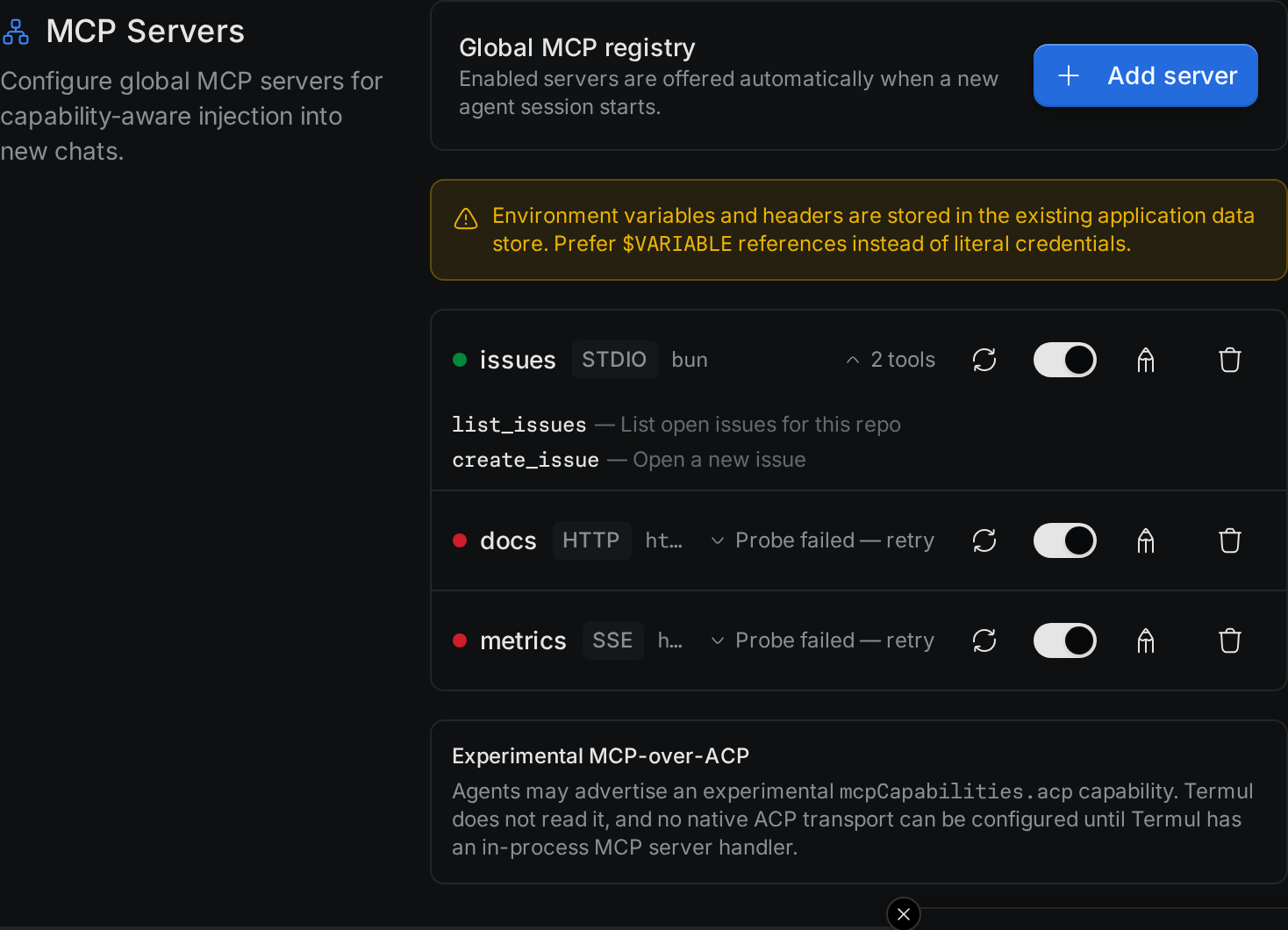
| Dot | Meaning |
|---|---|
| Green | Termul reached the server. |
| Red | Termul could not reach the server. Click the row's tools link to see the error. |
| Yellow | The server needs you to sign in. See Sign in to a server. |
| Gray | Termul has not tested the server yet. |
To test a server, click its refresh button. To see the tools a server offers, click Show tools, or the tool count, such as 2 tools.
When Termul tests a server, it replaces $NAME references in env with the values from the environment Termul runs in.
Use the other buttons on the row to manage the server:
- The switch turns the server on or off. Agents get only the servers that are on.
- The pencil button opens the server's JSON for editing. Edit one server object here, without the
mcpServerswrapper. - The trash button deletes the server.
Sign in to a server
Some HTTP and SSE servers need you to sign in with your account on that service. Their dot turns yellow, and the row gets a Connect button.
- Click Connect.
- Sign in on the page that opens in your browser, and allow access.
- Go back to Termul. The button changes to Disconnect, and Termul tests the server again.
In the browser version, the sign-in page opens in a new window. If nothing opens, allow pop-ups for the Termul site and try again. You have five minutes to finish signing in.
To remove the sign-in, click Disconnect.
Global and per-project servers
The list in Settings is one list for the whole app. Every project uses the same servers.
Choose servers for a new chat
When you start a new chat, the chat box shows how many MCP servers the chat gets. Click that count to see each server's status and turn servers on or off. The switches there are the same switches as in Settings, so the change applies to later chats too.
Termul always offers stdio servers. It offers HTTP and SSE servers only to agents that say they support them.