Install an agent
See which agents are ready to chat, install the ones you want, and keep them up to date.
Termul knows about dozens of AI coding agents. Some are ready the moment you install Termul. Others need a download or a tool on your computer first. This page shows you how to tell which is which and how to get each one running.
Where the agent list comes from
Termul ships with a built-in list of agents. The list comes from the public agent registry at cdn.agentclientprotocol.com, the same registry the Zed editor uses. Termul reads its built-in copy, so the list works offline.
Termul also checks the online registry for newer versions when it starts, and again every 24 hours. That check only compares versions. Nothing changes until you choose to update an agent. When you do, Termul switches to the online registry, so the list also shows agents that were added after your version of Termul was released.
See which agents are ready
- Open Settings with
Ctrl+,(Cmd+,on macOS). - Click AI Agents.
- Scroll to the agent list. Type in Filter agents… to find one by name.
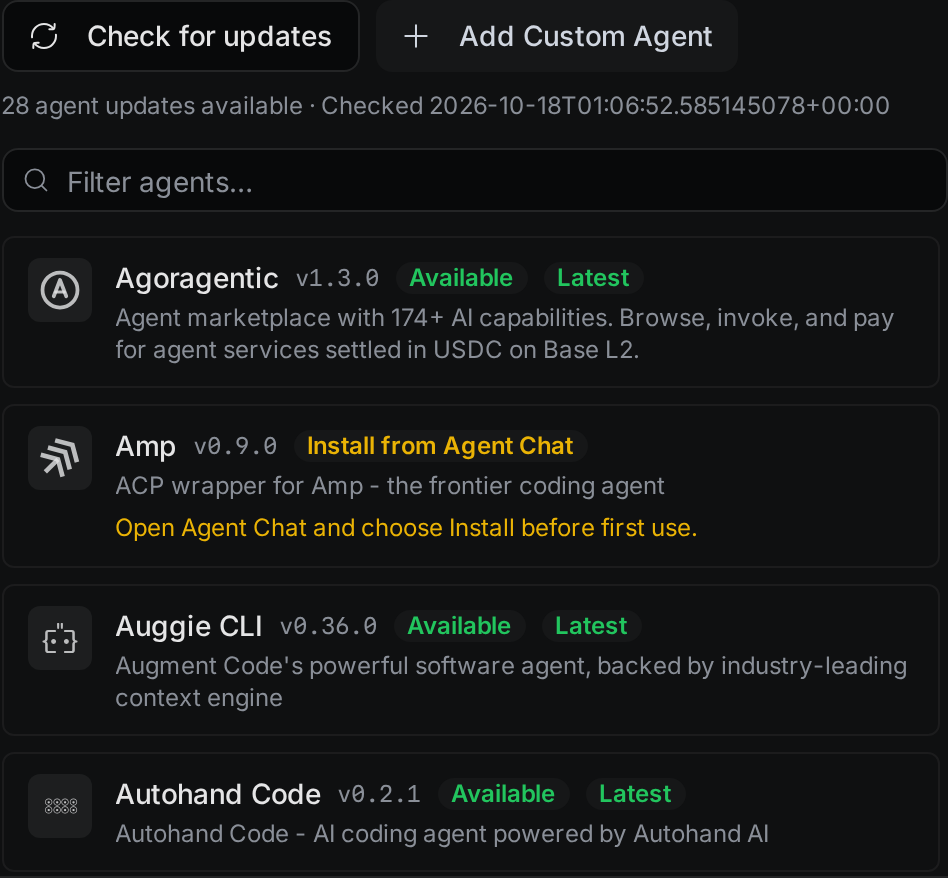
Each agent has a status badge. The badge tells you what to do next.
| Badge | What it means | What to do |
|---|---|---|
| Available | The agent can start now. | Start a chat with it. |
| Warming…, Warm, Session ready | Termul already started the agent in the background, so your next chat opens faster. | Nothing. |
| Install from Agent Chat | Termul can download the agent for you. | Install it from a new chat. See Install an agent from a chat. |
| Needs Node.js | The agent runs through npx, which comes with Node.js. | Install Node.js, then reopen Settings. If the badge stays, restart Termul. |
| Needs uv | The agent runs through uvx, which comes with uv. | Install uv, then reopen Settings. If the badge stays, restart Termul. |
| Manual install | Termul cannot download this agent. | Install it from the vendor, then tell Termul where it is. See Point Termul at an agent you installed. |
| Unavailable | The agent has no build for your operating system or processor. | Pick another agent. |
The row also shows the agent's version. A Latest badge means no newer version exists in the online registry.
Install an agent from a chat
You install agents from the chat box of a new chat, not from Settings.
- Click New chat.
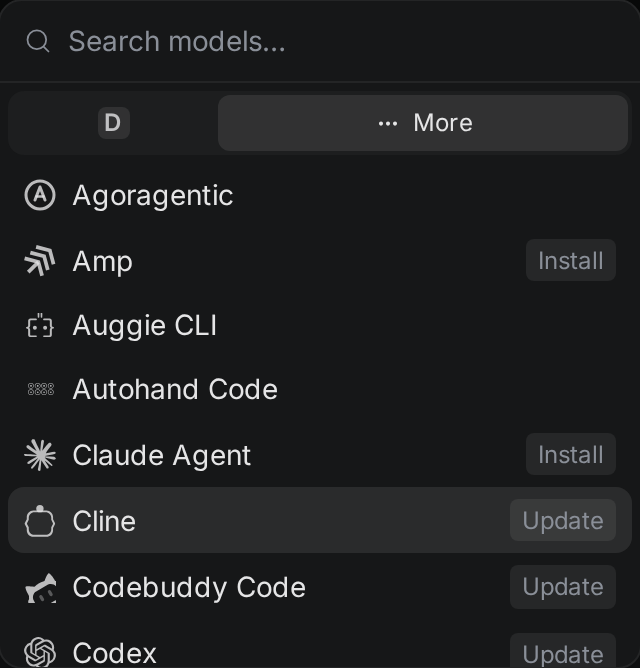
- In the bottom row of the chat box, click the button that shows the current agent or model.
- Click More to see every agent, or type the agent's name in the search box.
- Click the agent. Agents that need a download show an Install tag.
- Click Install. You can click it in the menu, or in the Install required bar above the chat box.
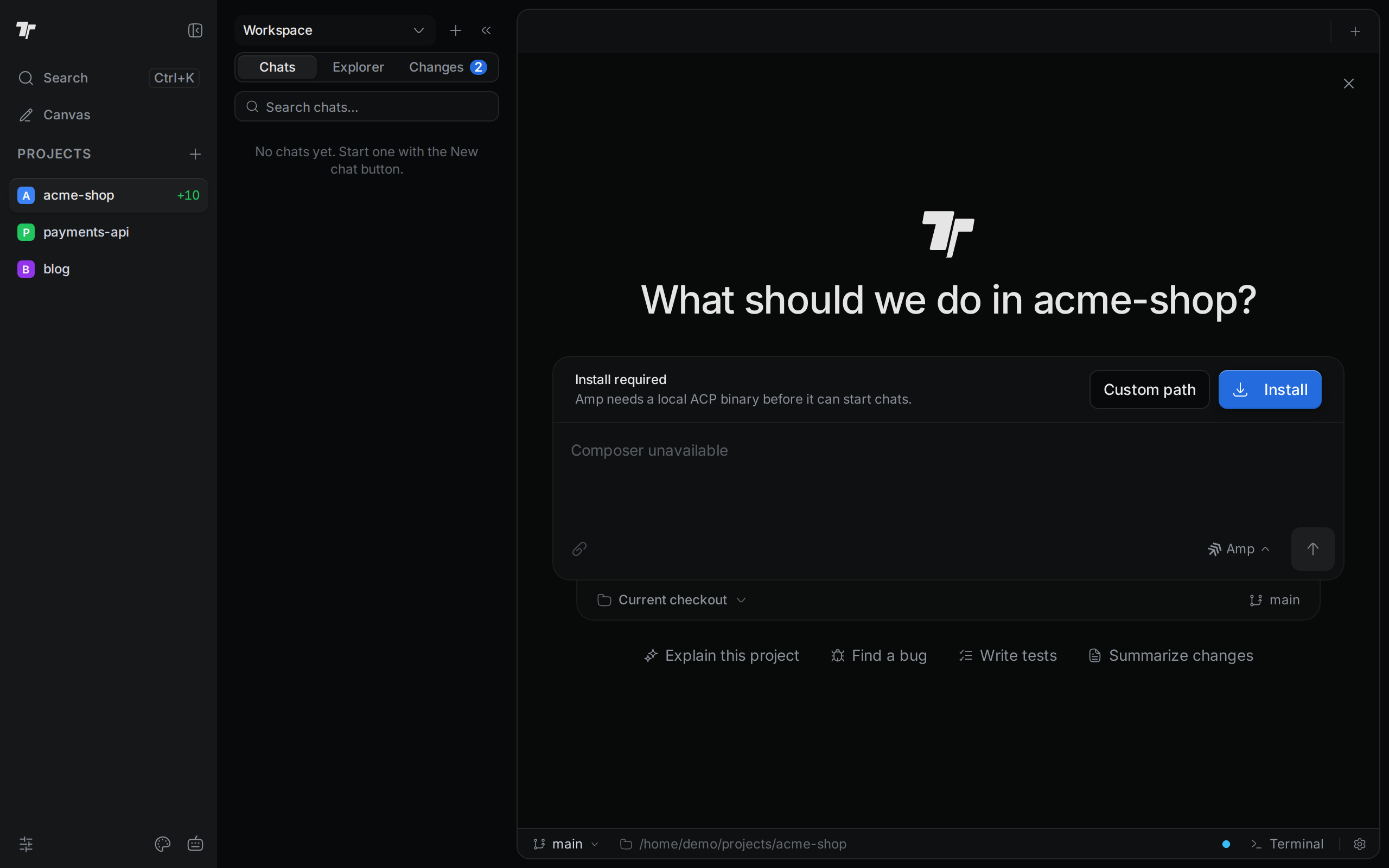
Termul downloads the agent and keeps it in its own folder. When the download finishes, you can type your first message.
If you already have the agent on your computer, click Custom path instead of Install. Type the path to the agent's program, or click the folder button to find it. Then click Save.
Some agents ask you to sign in the first time you use them. The chat shows the sign-in choices the agent offers. For Claude, see Claude accounts.
Point Termul at an agent you installed
Agents marked Manual install must come from the vendor. The agent's row in Settings shows the command Termul expects, after Expected:.
- Install the agent with the vendor's instructions.
- Click New chat and pick the agent in the agent menu.
- In the Manual install bar, type the path to the agent's program, or click the folder button to find it.
- Click Save.
After you save a path, the agent's row in Settings > AI Agents has a path box. To change the path, edit it and click Save path. To go back to the default, click Clear saved path.
Set up Claude Agent
Claude Agent needs three things on the computer that runs Termul:
- Node.js 22 or newer, with npm.
- The Claude Code command-line tool from Anthropic, installed as
claude. - A Claude Code login. Run
claude auth loginin a terminal once.
When those are in place, pick Claude Agent in a new chat and click Install. Termul installs a fixed version of Anthropic's Claude Agent package in its own folder. To use more than one Claude account, see Claude accounts.
Update an agent
Termul compares your agents with the online registry when it starts and every 24 hours. To check right now, click Check for updates in Settings > AI Agents. The line under the button says how many updates exist and when Termul last checked.
- Find the agent in the list. An agent with an update shows its current and new version, for example
0.9.0 → 0.10.0. - Click Update to followed by the version number.
Your next chat with that agent uses the new version.
In the agent menu of a new chat, an agent with a newer version shows an Update tag.
The first update you apply also switches Termul to the online registry. From then on, the agent list includes new agents from the registry.
Run Claude Code in a terminal
The command palette has a Launch Agent command. It opens a new terminal in the active pane and runs the claude command there, so you get Claude Code's own terminal screen instead of a Termul chat. Claude Code must be installed for this to work.
- Press
Ctrl+K(Cmd+Kon macOS) to open the command palette. - Type
launch agent. - Pick Launch Agent.
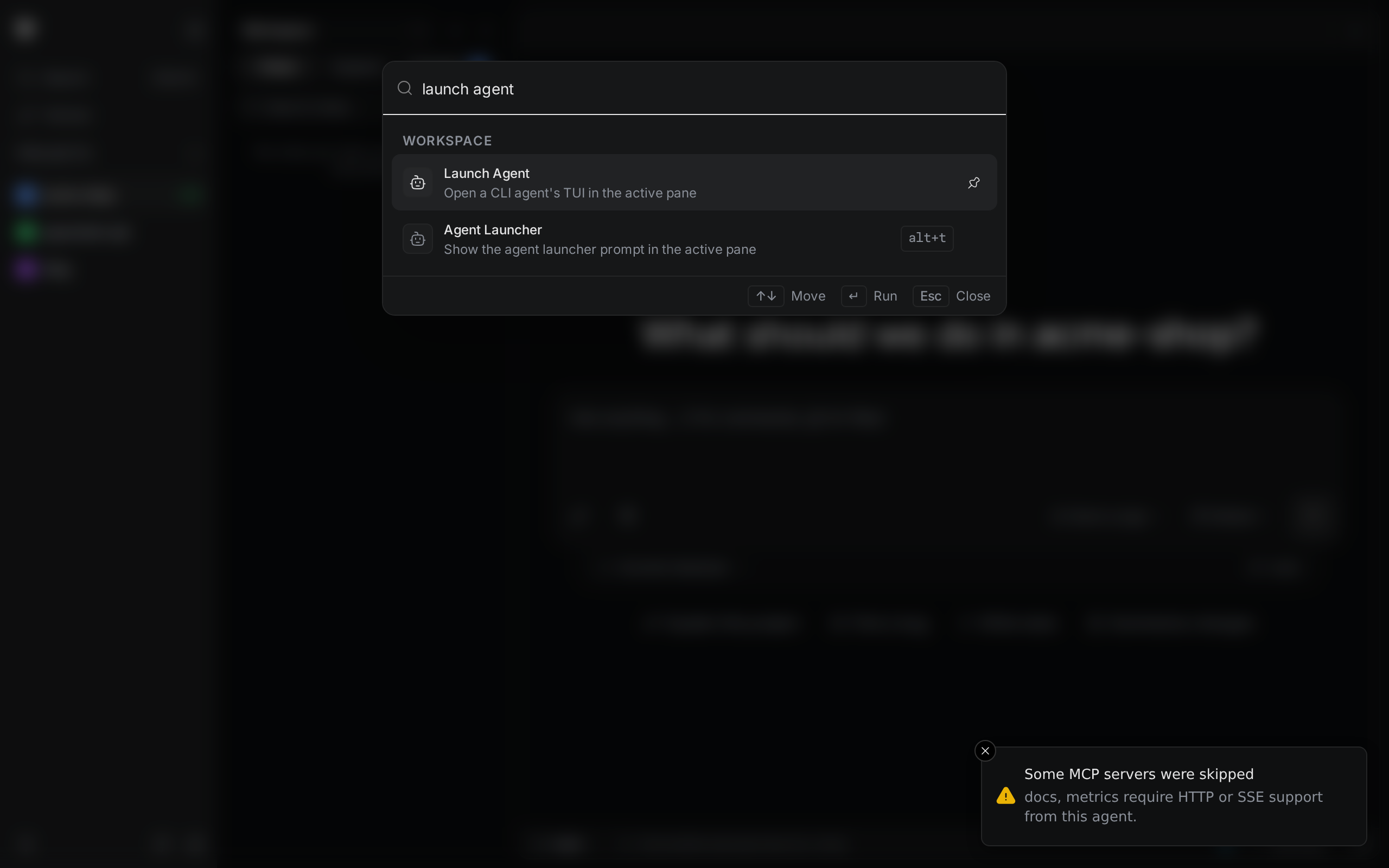
The Agent Launcher command below it shows the new-chat screen in the active pane instead.