Work with Markdown
Switch between Preview and Source, jump with the outline, edit frontmatter properties, and view Mermaid diagrams.
Termul opens Markdown files (.md) as formatted documents that you can edit. You can switch to the plain Markdown text at any time. An outline next to the document lets you jump between headings.
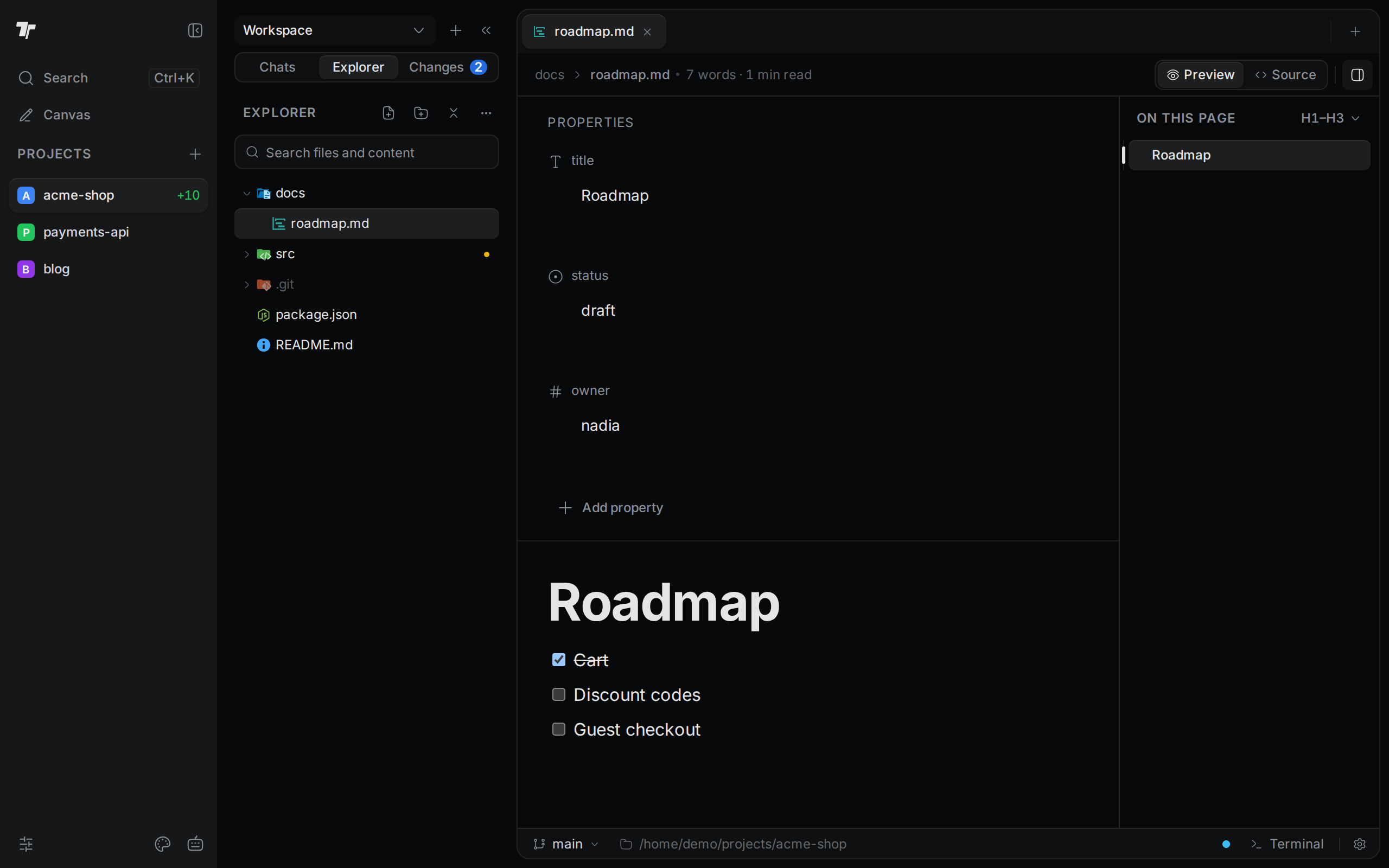
The toolbar above a Markdown file shows the folder, the file name, the word count, and an estimated reading time.
Switch between Preview and Source
Use the switch on the right of the toolbar:
- Preview shows the document with its formatting: headings, lists, checkboxes, code blocks, and diagrams. You can click into the text and edit it there.
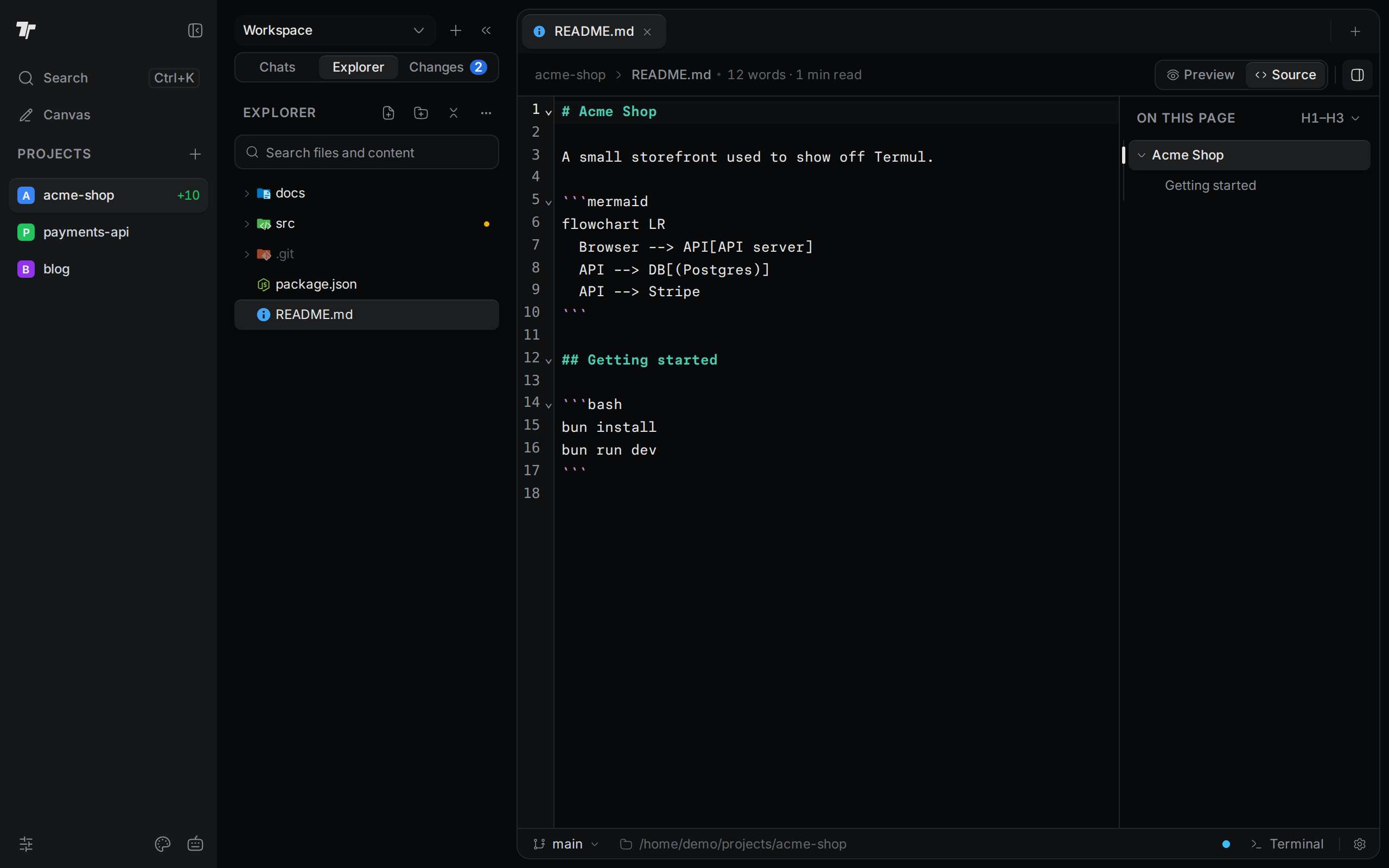
- Source shows the Markdown text in the code editor, with line numbers and Markdown colors. Use it to edit the Markdown syntax directly, to edit frontmatter as text, or to change a diagram.
A Markdown file opens in Preview. While the file stays open, Termul keeps the view you picked, also after a restart. When you open a Markdown file from a search result, it opens in Source at the matching line.
Saving works the same in both views. See Edit and save code.
Jump with the outline
The outline lists the headings of the document under On this page. It shows in both Preview and Source.
- Click a heading to scroll the document to it. The outline marks the heading that you are reading.
- Click the arrow next to a heading to fold or unfold the headings under it.
- When the document is long enough to scroll, the bottom of the outline shows how much you have read, for example "40% read". Click Scroll to top to go back to the start.
- Drag the border between the document and the outline to change the outline width.
To show or hide the outline, click the Outline button at the right end of the toolbar.
Choose which headings show
- Click the depth button in the outline header. It shows the current depth, for example H1–H3.
- Under Show headings down to, pick a level from H1 to H6.
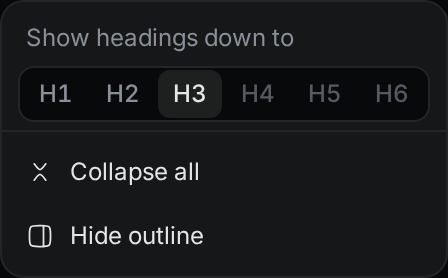
The same menu has Collapse all, Expand all, and Hide outline.
If the depth hides every heading, the outline says how many headings are hidden. If the document has no headings, it says "No headings yet".
Outline in a narrow pane
When the editor pane is narrower than 720 pixels, or on a phone, the outline turns into a column of short lines at the right edge of the document. Each line is a heading. Move the pointer over the lines to see the heading list, then click a heading to jump to it.
Edit frontmatter properties
Frontmatter is the block of key: value lines between two --- lines at the start of a Markdown file. Many tools read it for a title, a status, tags, and other details.
In Preview, Termul shows the frontmatter as a Properties list above the document. In Source, you see and edit it as text.
- To change a value, click it, type, and press
Enter. You can also click somewhere else. - To remove a property, hover over its row and click the trash icon.
- A list value shows each item as a small tag. Click the
xon a tag to remove that item. - A value that holds more keys inside it shows as gray text. You cannot edit it in Preview. Use Source instead.
To add a property:
- Click Add property.
- Type the name of the property and press
Enter, or click Add. - Type the value in the new row.
Each property name must be unique. Press Esc or click Cancel to stop.
The Properties list shows only when the file already has frontmatter.
View Mermaid diagrams
Mermaid is a text format for diagrams such as flowcharts. In Preview, Termul draws every code block marked mermaid as a diagram.
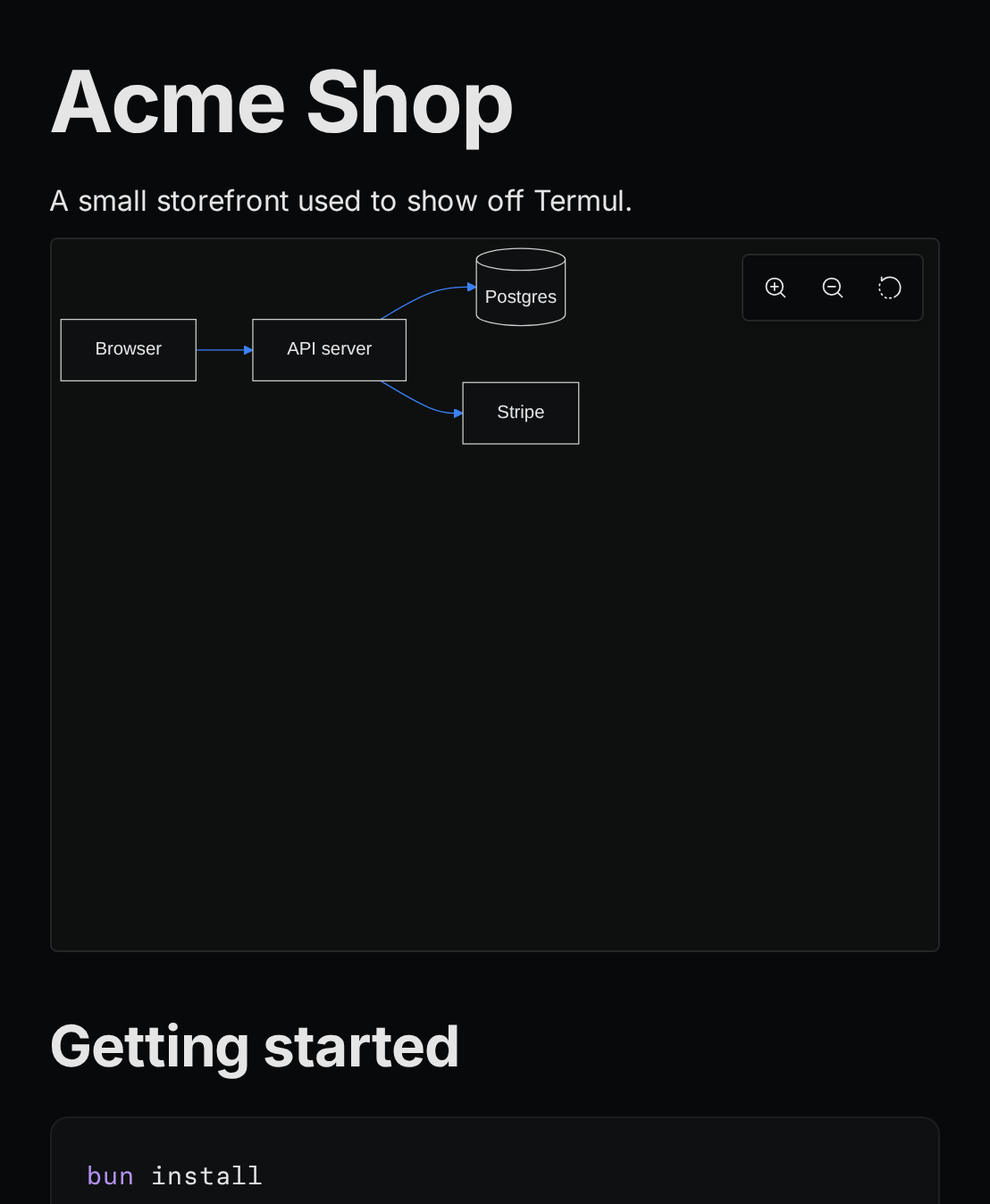
To look at the diagram closely:
- Scroll the mouse wheel over the diagram to zoom in or out around the pointer.
- Drag the diagram to move it.
- Use the buttons in the top-right corner: Zoom in, Zoom out, and Reset view.
To change a diagram, switch to Source and edit the text inside the mermaid code block. If the text has an error, Preview shows "Mermaid syntax error" and the diagram text instead of the diagram.