Ask AI about terminal output
Have your agent explain terminal output or suggest a fix for a failed command.
When a command fails or prints something you don't understand, you can ask an AI agent about it from the terminal. The agent explains the output, and for a failed command it suggests a corrected one. Termul puts a suggested command at your prompt for you to check. It never runs the command for you.
Termul uses the agent you last picked in the chat launcher. If you never picked one, Termul uses a default agent. You need at least one agent set up. See Agent setup.
Explain output or fix a command
- Select the text you want help with. For a failed command, select the command and its error message.
- Right-click the selection.
- Select Explain with AI or Fix Command with AI.
A panel opens at the bottom right of the pane. It says Asking the configured agent… while it waits, then shows the answer.
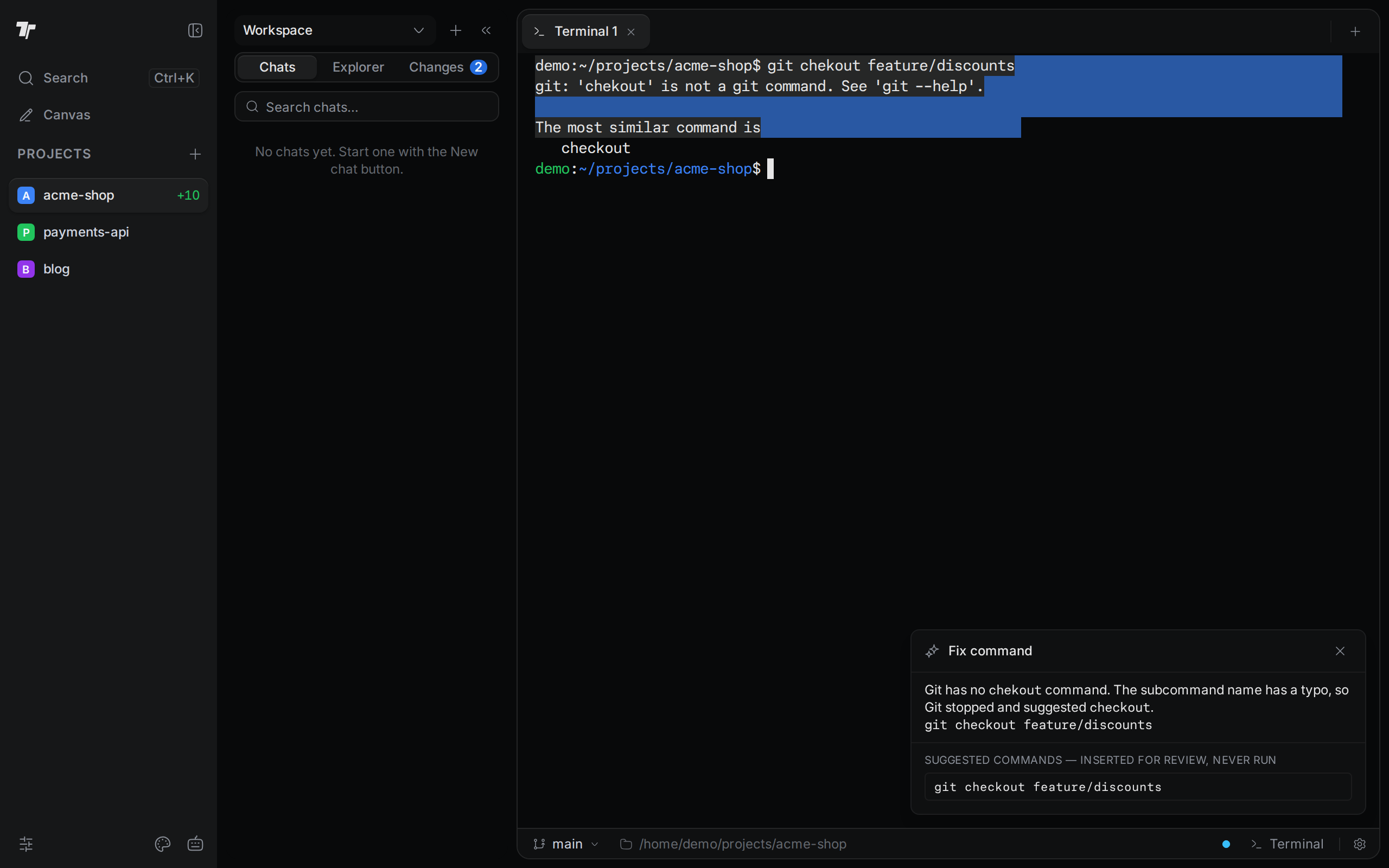
Explain with AI describes what happened. If the output shows an error, the answer can include a command that fixes it.
Fix Command with AI explains what went wrong and suggests a corrected command. It can also add a tip.
Use a suggested command
Suggested commands appear as buttons under the Suggested commands heading. The heading also reminds you that Termul inserts them for review and never runs them.
- Select a suggested command. Termul types it at your prompt, without pressing
Enter. - Read the command and edit it if you need to.
- Press
Enterto run it.
Termul offers a command as a button only if it is one line of shell code. A longer script stays in the answer text, and you can copy it from there.
To close the panel, select × or press Esc.
What the agent sees
The agent gets the text you selected, the terminal's folder, and the exit code of the last command, if Termul knows it. It doesn't see the rest of the terminal. The request runs in a separate, temporary session that doesn't appear in your chat list. The agent may not run tools, ask for permission, or ask you questions. If it tries, Termul stops the request.
If it doesn't work
Most error messages in the panel start with "Error:".
- "Select some terminal output first" means the selection is only spaces, or Termul doesn't know the terminal's folder yet. Select other text, or wait a moment and try again.
- "Configure and select an ACP agent before using terminal assist" means no agent is set up. Add an agent, then pick it in the chat launcher.
- "The selected ACP agent is unavailable" means Termul couldn't start the agent. Check the agent's setup and try again.
- "The selected terminal output is too large to assist safely" means the selection is longer than 20,000 characters. Select less text.
- "Terminal assist timed out" means the agent didn't answer within 90 seconds. Try again.
- "The ACP agent attempted to use a tool", "requested permission", or "asked an interactive question" means the agent didn't answer in plain text. Try again, or pick another agent.
- "The ACP agent returned an empty response" or "The ACP agent response was too large" means the answer was empty or longer than 40,000 characters. Try again with a smaller selection.